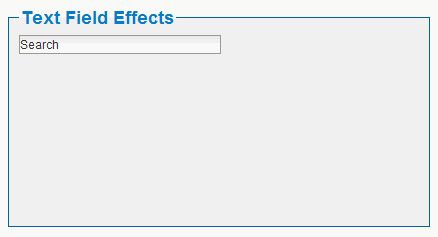
Although forms are one of the most boring elements of any website, styling them can be a dangerous business. All too often it is forgotten that the way a form looks will impact greatly upon what the user uses it for. Change the style too drastically and the user might not recognize it as a form at all. In this tutorial you will learn how to style the text field element just enough to make it look good but without ever detracting from the fact that it has to be easily recognizable as a text field from a form.
You will require the following software before you begin:Graphics editor
Text editor
You must create your graphic first, which needs to be a shadow on a white background. Importantly, the object that the shadow is coming from must not be visible. The image should be 1*25px with a white background.
You must also create a new HTML file, within which you need a form and then a text field. Your html should look like this:
<!DOCTYPE html PUBLIC "-//W3C//DTD XHTML 1.0 Transitional//EN" "http://www.w3.org/TR/xhtml1/DTD/xhtml1-transitional.dtd">
<html xmlns="http://www.w3.org/1999/xhtml">
<head>
<meta http-equiv="Content-Type" content="text/html; charset=iso-8859-1" />
<title>Styling a text field</title>
</head>

<body>
<fieldset><legend>Text Field Effects</legend>

<form action="" method="get">
<input name="Search" type="text" value="Search" maxlength="200" />
</form>
</fieldset>

</body>
</html>
You now have to add a class to this text field, which you could do using the "selector" "input" but this would style every single type of input on your page. Instead, you should put the following code inside each of the "input" tags: class="textfield_effect" .
OK, you are now finished with HTML for the time being. Now you can move on to creating a CSS file. The properties you are going to be playing around with are:border-width, border-color, border-style
width, height,
background-image
You may also choose to change the various text properties.
You will also use the pseudo classes :hover and :focus to create the main effects.
Instead of explaining each tiny bit of CSS, this tutorial will just show you it from there you should be able to understand what has been done (the CSS is commented to help you with this.)
/* CSS Document */

.textfield_effect    {
    /*we will first set the border styles.*/
    border-width: 1px;
    border-style: solid;
    border-color: #999999;
    /*we are now going to add in the shadow image that we created earlier*/
    background-image: url(back_field.gif);
    background-repeat: repeat-x;
    /*I am going to add some text formatting of my own*/
    font-family: Arial, Helvetica, sans-serif;
    font-size: 12px;
    color: #333333;
    width: 200px;
    height: 15px;
    }

/*we are now going to style how the textfield will look when we
hover over it and when we actually have it selected*/

.textfield_effect:hover    {
    border-color: #64acd8;
    border-width: 1px;
    }

.textfield_effect:focus    {
    border-color: #64acd8;
    border-width: 1px;
    }

/*you may also like to add some styles for the rest of the form*/

fieldset    {
    width: 400px;
    height: 200px;
    border-style: solid;
    border-width: 1px;
    border-color: #036399;
    margin-left: auto;
    margin-right: auto;
    background-color: #F5F5F5;
    }
fieldset:hover    {
    border-color: #0ca0ff;
    }
legend    {
    font-family: sans-serif;
    font-size: 18px;
    color: #097bc3;
    font-weight: bold;
    }
Next you must attach the CSS file to the HTML file by adding this code in the head of your HTML file: <link href="style.css" rel="stylesheet" type="text/css" /> Now add a title to the form element but instead of adding it on the outside of the text field you are going to put the text inside the text field. All you need to do is add this piece of code to the "input" tag: onfocus="this.value=''" . The only other thing you need to add is the submit button! A word of warning though, this is an element that should not be styled because it looks very different in different operating systems! And that is the end of this tutorial, you should now have been able to create something that looks like this: