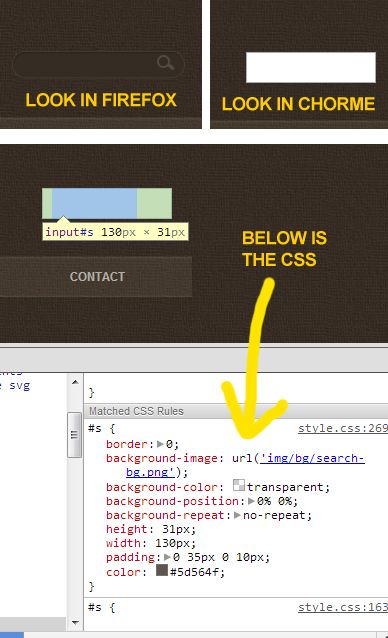
Im having a problem with my input field.
In firefox, it works pretty well.
In chrome, its just a blank white box. Seems like the css is not connected.. but it is.

See this image http://i1235.photobucket.com/albums/ff429/rakwel10/chrome.jpg

Click Here to view our website

Thank so much for your future help!

Dani AI

Generated

A short note tied to the thread: reported a Chrome-only “blank” input while Firefox showed the field correctly. The quick change suggested by resolved the symptom, and added useful context about browser differences. The root causes are usually stylesheet matching or browser-built styling, so the following explains practical checks and a safe CSS normalization to keep the control visible and consistent across engines.

What to check first

  • Inspect the element in Chrome DevTools and look at matched rules and computed values (background, color, opacity, display).
  • Confirm the stylesheet actually loaded (Network tab) and that no higher-specificity rule is hiding the element.
  • Check for vendor appearance or pseudo-elements that can change layout (WebKit search controls, extra padding, or an overlayed clear button).

Non-invasive normalization and fixes

  • Reset vendor appearance so site CSS controls the look, then apply explicit background/color/border.
  • If WebKit search decorations interfere, hide those pseudo-elements.
/* normalize search inputs so site CSS applies consistently */
input[type="search"], input[type="text"], input:not([type]) {
  -webkit-appearance: none;
  -moz-appearance: textfield;
  appearance: none;
  box-sizing: border-box;
  border-radius: 3px;
}

/* hide WebKit cancel/decoration controls if they overlap content */
input[type="search"]::-webkit-search-cancel-button,
input[type="search"]::-webkit-search-decoration {
  -webkit-appearance: none;
  display: none;
}

Final guidance
Prefer semantic input types for features and accessibility, but include a small normalization layer like the example above when consistent visuals are required across browsers. If identical behavior in older clients is the priority, treating the control as a generic text field in CSS (or using a type that all target browsers render the same) is an acceptable fallback.

Recommended Answers

All 5 Replies

hai rakwel10,

in your page make the search box element definition
from this,

<input id="s" name="s" type="search">

to this,

<input id="s" name="s" type="text">

try to change like that it gives as you expected

let me know the status if its works fine or not

Works like magic! Thanks! How did you find-out?

i thought there is no "search" type of html input elements

what i mean is upto now we seen this kind of declaration for input elements of html as follows

<input type="text" name="" id=""/>
<input type="radio" name="" id=""/>
<input type="submit" ....../> ....etc

but we haven't seen this kind of notations for declaring input elements in our html

<input type="search" name="" id=""/>

then we checked by changing the type from "search" to "text"

its worked fine

thats it

please mark as solved if you get your answer

Actually to clarify, there is an attribute type = "search" but this was introduced with HTML5. Not all browsers support it. This is why you see a difference. If the browser supports it, browser styling will apply.

If you are interested in more examples or a more detailed explanation, take a look at this overview: HTML5 Form Input Elements. Aside from the examples, there is a browser validation that will test the different input element types against the browser that is used to visit the page.

Be a part of the DaniWeb community

We're a friendly, industry-focused community of developers, IT pros, digital marketers, and technology enthusiasts meeting, networking, learning, and sharing knowledge.