Hi. I want to detect a face and draw line exactly around the face to crop it.

I searched a lot and used the EmguCV face detector. but now my code just draw a "rectangle" around the face and if I crop it, I will have a rectangle with a face inside it and it's not useful for me. this is the core of my simple code:

CascadeClassifier _cascadeClassifier = new CascadeClassifier(Application.StartupPath + "/haarcascade_frontalface_alt_tree.xml");
using (var firstImage = Image.FromStream(saveImageStream))
{
    var bgrImage = new Image(new Bitmap(firstImage));
    Image grayFrame = bgrImage.Convert();
    var faces = _cascadeClassifier.DetectMultiScale(grayFrame, 1.01, 1, Size.Empty);
    foreach (var face in faces)
    {
        bgrImage.Draw(face, new Bgr(Color.BurlyWood), 3);
    }
    Image detectedImage = bgrImage.ToBitmap();
    detectedImage.Save("detectedImage .jpg");
}

the output of this code is a picture with "rectangle" around the face. you can see in the attached picture.
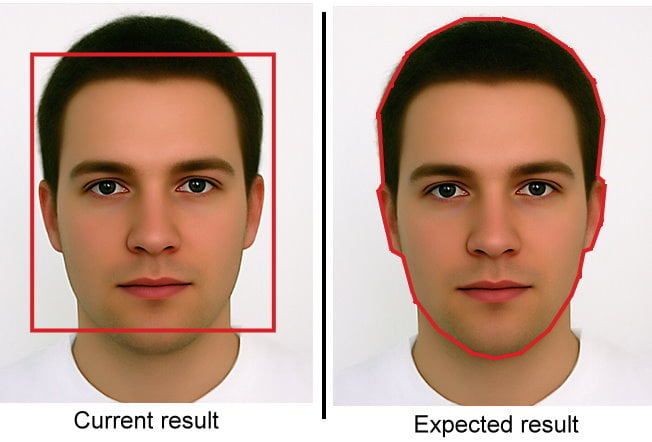
Untitled_-_3.jpg

the output of this code is a picture with "rectangle" around the face. But how can I detect face and "draw line around the face" like an oval that consist all elements of the face and not anything else?

thank you

Dani AI

Generated

If you want a non-rectangular crop, switch from just “detecting a face box” to “estimating face landmarks,” then build a mask from those points and crop to that mask. In EmguCV/OpenCV you can load a lightweight landmark model (LBF), get 68 points for each face, compute a convex hull around the points to approximate the silhouette, and use that hull as a filled mask. This avoids including extra background while keeping the entire face. Yrth’s edge idea and rproffitt’s Sobel pointer are good for finding edges, but they will not reliably isolate a clean facial contour across poses and lighting; landmarks are designed for exactly this step. See OpenCV’s Facemark API tutorial and Emgu’s FacemarkLBF wrapper docs for the C#/OpenCV bridge. OpenCV Facemark usage, Emgu FacemarkLBF class.

Minimal C# sketch using EmguCV:

// assumes you already have 'faces' from your cascade
using Emgu.CV;
using Emgu.CV.Structure;
using Emgu.CV.Face;
using Emgu.CV.Util;

var facemark = new FacemarkLBF();
facemark.LoadModel("lbfmodel.yaml"); // pre-trained LBF model

using var vFaces = new VectorOfRect(faces);
using var landmarks = new VectorOfVectorOfPointF();

if (facemark.Fit(bgrImage.Mat, vFaces, landmarks))
{
    for (int i = 0; i < vFaces.Size; i++)
    {
        var pts = Array.ConvertAll(landmarks[i].ToArray(),
                                   p => new System.Drawing.Point((int)p.X, (int)p.Y));

        using var allPts = new VectorOfPoint(pts);
        using var hullPts = new VectorOfPoint();
        CvInvoke.ConvexHull(allPts, hullPts, true, true); // silhouette hull
        using var mask = new Mat(bgrImage.Height, bgrImage.Width, Emgu.CV.CvEnum.DepthType.Cv8U, 1);
        mask.SetTo(new MCvScalar(0));
        CvInvoke.FillConvexPoly(mask, hullPts, new MCvScalar(255));

        var result = new Mat();
        CvInvoke.BitwiseAnd(bgrImage, bgrImage, result, mask); // keep face only
        var crop = CvInvoke.BoundingRectangle(hullPts);
        new Mat(result, crop).Save("face.png"); // use PNG if you later add alpha
    }
}

Notes and options:

  • For a classic oval, fit an ellipse to the landmarks and fill that ellipse for the mask. OpenCV fitEllipse.
  • If you prefer segmentation instead of landmarks, seed GrabCut with your face rectangle and refine the mask; it often preserves hair better. OpenCV GrabCut tutorial.
  • For very robust contours, MediaPipe Face Mesh provides dense 468-point landmarks you can hull or triangulate. MediaPipe Face Mesh.

Recommended Answers

All 4 Replies

Here's a bit of ancient history for you. Way back in the day one of the very first breakthroughs in image recognition was made by a computer hobbyist, and it is germaine to your problem. The main problem in image recognition is edge extraction - how does one do that? It turns out that there is a fairly simple algorithm for extracting the edges from an image:

1) Take the image as a bitmap.
2) Make a duplicate of the image.
3) Offset the duplicate one pixel horizontally and one pixel vertically from the original.
4) XOR the two images back together, pixel-for-pixel.

This was originally done for monochrome images - for a color image you will probably have to come up with some manner of comparison threshold whereby you can tell whether two colors are sufficiently similar to count as the same (and thus cancel out) rather than using a simple exclusive-or. It will also extract all the edges, which in your sample above might not give you a clean line along the jaws on either side and you'll get lips, nose, brows, hairline and other spurious elements. But you might want to give it a try - it might get you close enough to a solution that you can see a fairly simple way to clean up the result and arrive at an acceptable solution.

You could also combine this with other algorithms. There is a fairly common and popular algorithm whose sole function is to take a full-color image and reduce it to simple gray-scale - that might take care of 90% of the color problems right there and bring you back to a simple exclusive-or. There are a lot of such algorithms - search for "color to grayscale" and you'll find several that are trivial to implement.

You can try Adobe Photoshop for this case and here you can easily detect any face and also crop this without loosing your image quality.

Be a part of the DaniWeb community

We're a friendly, industry-focused community of developers, IT pros, digital marketers, and technology enthusiasts meeting, networking, learning, and sharing knowledge.