I want to get this picture Click Here to look like the picture on this website . It looks cropped almost because it doesn't look scaled or anything, but I know it's not cropped because I got the image off of this website. So any ideas. I tried to look at inspect element... I couldn't really decipher it.

Dani AI

Generated

Good direction so far — is right that the effect is done with CSS positioning of a background, and ’s tip to use the browser dev tools is exactly the fastest way to see which rules are applied. A couple of concise, practical options and fixes you can apply now.

Use a background on a positioned container and add the dark layer with a pseudo-element (keeps markup clean):

.hero {
  position: relative;
  width: 100%;
  height: 500px;
  background: url('../images/graph.jpg') center / cover no-repeat;
}

.hero::after {
  content: "";
  position: absolute;
  top: 0; right: 0; bottom: 0; left: 0;
  background: rgba(0,0,0,0.35); /* tweak alpha for lighter/darker */
  pointer-events: none;
}

If you’re using an actual <img>, the object-fit approach gives the same cropped look while keeping the image semantic:

.hero-img {
  display: block;
  width: 100%;
  height: 500px;
  object-fit: cover;
  object-position: center;
}

Quick troubleshooting notes tied to the thread:

  • The tiny white gap is usually the browser default body margin; body { margin: 0; } fixes it (no need for a full reset unless you want one). Also check for stray padding on parent elements in dev tools.
  • width: 100%x is invalid — use width: 100%.
  • If overlay blocks clicks, use pointer-events: none on the overlay and keep interactive elements positioned above it with a higher z-index.
  • object-fit is convenient but has limited support in very old browsers (not supported in IE); fallback to background-image if you need to support those.

Adjust background-position or object-position to control the crop focal point (e.g., 50% 30% to pull the crop higher). Use the dev tools to tweak values live until it matches the reference site.

Recommended Answers

All 6 Replies

its usually css positioning of a background image
you can select in css how big a box, and whee it is placed, to display an image bcakground

+1 for almostbob..

If i can add that may be helpful for you, just use the dev tools of your browser so you can inspect the elements of the page. here is how the site took care of that effect..
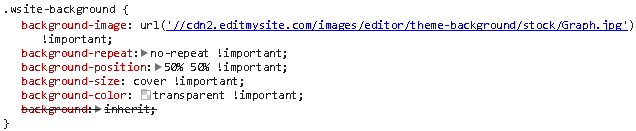
84a58ae75580ddc97e8c60bff2079f3e

Awesome!!! :D it works great... now do you know how to make that sort of dark overlay... to where it just looks darkened... I don't know how to do that either XD sorry I have never played with this kind of thing before so this is a pretty cool learning experience. Also I don't know if I'm just tired or something but I can't seem to get the <div> element snug to the sides... it has these little white spaces that look like this. Click Here

Here is the code if you want to take a look...

HTML
<!DOCTYPE html PUBLIC "-//W3C//DTD XHTML 1.0 Transitional//EN" "http://www.w3.org/TR/xhtml1/DTD/xhtml1-transitional.dtd">
<html xmlns="http://www.w3.org/1999/xhtml">
<head>
    <meta http-equiv="Content-Type" content="text/html; charset=utf-8" />
    <title>Weblup</title>
    <link rel="stylesheet" type="text/css" href="css/home.css">
</head>

<body>
    <div class="header-background"></div>
</body>
</html>
CSS
div.header-background{
background-image: url(../images/Graph.jpg)!important;
background-repeat: no-repeat!important;
background-position: 50% 50% !important;
background-size: cover !important;
background-color: transparent !important;
background:inherit;
height: 500px;
width: 100%x;
}

An overlay is generally just a div with opacity style applied to it. If you wanted to overlay the entire screen you set the div to position fixed and ensure its width and height fits the screen or whatever area you want to cover. You also need include the z-index style to place the overlay above/between the target elements. With regards to the space, that appears to be caused by the default browser styles related to margin and/or padding. You may consider using a CSS Reset to apply a margin and padding of 0 to all target elements. Do a quick search on that and you'll find a few popular resets.

This is for anyone who had the space problem and was looking for a fix. This is the code I found to reset everything. Thanks everyone for all the help :D

html, body, div, span, applet, object, iframe,
h1, h2, h3, h4, h5, h6, p, blockquote, pre,
a, abbr, acronym, address, big, cite, code,
del, dfn, em, img, ins, kbd, q, s, samp,
small, strike, strong, sub, sup, tt, var,
b, u, i, center,
dl, dt, dd, ol, ul, li,
fieldset, form, label, legend,
table, caption, tbody, tfoot, thead, tr, th, td,
article, aside, canvas, details, embed, 
figure, figcaption, footer, header, hgroup, 
menu, nav, output, ruby, section, summary,
time, mark, audio, video {
    margin: 0;
    padding: 0;
    border: 0;
    font-size: 100%;
    font: inherit;
    vertical-align: baseline;
}
/* HTML5 display-role reset for older browsers */
article, aside, details, figcaption, figure, 
footer, header, hgroup, menu, nav, section {
    display: block;
}
body {
    line-height: 1;
}
ol, ul {
    list-style: none;
}
blockquote, q {
    quotes: none;
}
blockquote:before, blockquote:after,
q:before, q:after {
    content: '';
    content: none;
}
table {
    border-collapse: collapse;
    border-spacing: 0;
}

Ok I have tried for a while now to figure out how to completely copy the top of this page but I haven't been able to do it. I do own this page and I can prove it, so I'm not doing anything wrong. It's just I'm still fresh learning HTML and I just could use some help.

Be a part of the DaniWeb community

We're a friendly, industry-focused community of developers, IT pros, digital marketers, and technology enthusiasts meeting, networking, learning, and sharing knowledge.