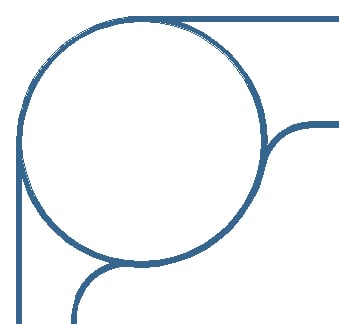
I would like to smooth out some jaggies in a picture without making it too blurred, does anyone have any suggestions?

Dani AI

Generated

Jaggies are just aliasing: hard transitions at pixel boundaries. Manual repainting as attempted by can work for tiny fixes but gets tedious and makes smooth Bézier curves hard to achieve (as discovered). Two practical directions give consistently better results: convert the artwork to vector for true curves, or use edge‑preserving raster smoothing for photographs and textures.

For vector/line art (best for logos, icons, crisp shapes):

  • Use automatic tracing or redraw with a Pen tool so curves are represented by paths, not pixels.
  • Quick Illustrator workflow: Image Trace (choose an appropriate preset) -> Expand -> Simplify paths -> Smooth Tool to reduce nodes -> export as SVG or sized PNGs.
  • Redrawing with long-handle anchor points yields much smoother curves than painting pixel-by-pixel.

For raster/photography (preserve detail while removing stair-stepping):

  • Work non-destructively on duplicates. Apply an edge-preserving filter (Surface Blur, Selective Gaussian/Bilateral) with modest settings to soften jaggies but not the whole image.
  • Use a layer mask to limit smoothing to the problem edges. Restore midtone detail with a subtle High Pass (1–3 px) set to Overlay or Soft Light on a copy.
  • When resizing, choose bicubic or Lanczos resampling and consider exporting 2x assets for high-DPI displays to make aliased edges less visible.

Practical tips: enable antialiasing for shape/text tools; prefer SVG for UI elements; simplify auto-traced paths to reduce node clutter; avoid over-blurring (it causes haloing). For small, one-off fixes a selective blur + high-pass workflow is fastest; for anything needing perfect scalable curves, vector is the right long-term solution.

Recommended Answers

All 4 Replies

I'm not sure if this will work, but this is how I would do it. First, I would open the file in Photoshop. Then, I would create a new layer on top of it. I'd use the same pen color to draw over the image in the new layer. Then, just delete the original layer (the original image).

That's no fun :( It didn't work well for me.

I couldn't figure out how to make a curved line segment. But here's what I have so far ...

That looks great, but yes the curved line segments :( You don't have to do it for me :p Thanks for trying to help :)

Be a part of the DaniWeb community

We're a friendly, industry-focused community of developers, IT pros, digital marketers, and technology enthusiasts meeting, networking, learning, and sharing knowledge.