Hi Danniweb community!

It has been a long time, good to post again on here, always been a great site.

I am currently in the process of updating many aspects of my companies IT and the next thing is our website...

We are now using Office 365 and part of the reason for this, was to also use the website hosting option using SharePoint.

I am looking at designing a website from scratch using this, however I have not done it in this way before, I have designed a website before this, but only using one of the many sites whereby you choose a layout template etc, which SharePoint is also one of...

I am happy with that level of editing power and understand that there may be limits... However...

I have discovered that it is possible to design your own layout within sharepoint, and upload this for your own use. I have attempted to do this using a free layout design which was good but not quite what I wanted.

I was wondering if anyone can advise of one or more of the following:

1, is there a good website that anyone would recommend for obtaining a layout that has been pre-made that I would be able to purchase or trial for my website?

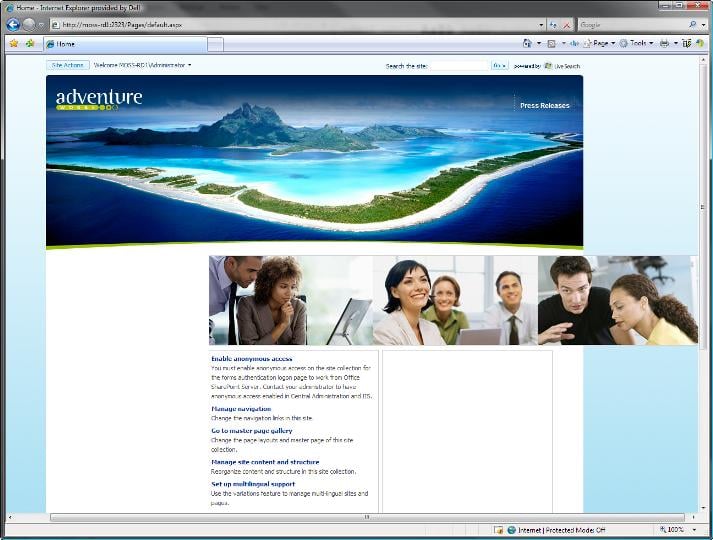
2, can anyone advise me of how I would acheive the attached design? (I am basically looking to have a very large banner across the top of the page for the purpose of a banner for advertising services/products) There is a slideshow already in Sharepoint but this appears limited and can only go to a certain size which leaves a large gap between it and the title? (attached another file showing this also)

I hope that this makes sense, and look forward to your comments.

Please let me know what other information you may need.

Many thanks in advance,

Kind regards,
Dan.

Dani AI

Generated

Good to see this back, . The built‑in SharePoint slideshow sits inside the page’s fixed content container, which is why it can’t grow to a full-bleed banner and why you see a gap under the title. Two practical options give the result you want:

  • Quick / low‑risk: add a full‑width "hero" using a Script Editor or Content Editor web part and a small CSS/HTML snippet (no master page edits). This is fast, reversible, and works on classic pages.
  • Robust / production: create a custom page layout (Design Manager or SharePoint Designer on a publishing site) or a custom master page so the banner sits outside the centered container. This is cleaner but requires publishing features and extra testing.

Quick example to paste into a Script Editor web part (upload images to Style Library first):

<!-- put this in a Script Editor web part -->
<div class="hero-banner">
  <div class="slides">
    <img src="/Style Library/Images/hero1.jpg" alt="Hero 1">
    <img src="/Style Library/Images/hero2.jpg" alt="Hero 2">
  </div>
</div>

<style>
/* full-bleed hero that breaks out of the fixed container */
.hero-banner{
  width:100vw;
  margin-left:calc(50% - 50vw);
  overflow:hidden;
  height:380px; /* adjust or use min-height / vh */
}
.hero-banner img{
  width:100%;
  height:100%;
  object-fit:cover;
  display:block;
}
</style>

Notes and troubleshooting: the gap is usually caused by title/placeholders or a max-width wrapper—inspect with browser dev tools and override the container’s max-width or the title’s bottom margin. For robust branding, use Design Manager: activate SharePoint Server Publishing Infrastructure, create a page layout with the hero DIV outside the main content placeholder, reference CSS from the Style Library, and copy OOTB master pages rather than editing originals. Keep responsive behavior by using object-fit: cover or background-size: cover and set heights in vh for mobile. In modern SharePoint experiences, master‑page customizations are discouraged; use modern web parts or SPFx approaches instead.

Bump

Be a part of the DaniWeb community

We're a friendly, industry-focused community of developers, IT pros, digital marketers, and technology enthusiasts meeting, networking, learning, and sharing knowledge.