Please refer to the attached image
I want to create an application which provides toolbar 'button' like BatteryBar. Thanks for your help :)

Please refer to the attached image
I want to create an application which provides toolbar 'button' like BatteryBar. Thanks for your help :)
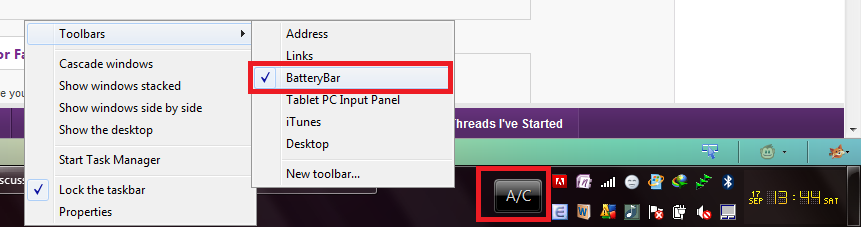
If by "toolbar button like BatteryBar" you mean a control that lives inside the Windows taskbar (an Explorer toolbar), that's an Explorer "band object" (deskband) — not just a skinned button inside your app. 's System.Drawing advice is useful for drawing custom buttons in a WinForms control, but it won't create a taskbar-integrated toolbar. Creating a true taskbar toolbar requires implementing the Shell band interfaces and registering a COM in‑proc server. (learn.microsoft.com)
Implementing a deskband is nontrivial: the band must implement interfaces such as IDeskBand, IObjectWithSite and IPersistStream (and IInputObject if it accepts input), be packaged as an in‑process COM DLL, and be registered so Explorer can enumerate it. Microsoft provides a DeskBand sample you can start from. Writing in‑process shell extensions in managed (.NET) code is discouraged by Microsoft because it injects the CLR into Explorer and other processes; the recommended route for a reliable deskband is native C++/ATL (or an out‑of‑process helper). Register with regsvr32 (mind the correct 32/64 bit tool). (learn.microsoft.com)
If your target is Windows 7 and later, consider supported alternatives instead of a deskband: the Taskbar Thumbnail Toolbar (ITaskbarList3 / ThumbBarAddButtons) places up to a few buttons on an app’s taskbar thumbnail and is the recommended pattern for new work; for simple persistent access use a NotifyIcon (system tray) with a context menu. If you must support Windows XP and need inline taskbar content, deskband is the only real option. (learn.microsoft.com)
Quick practical checklist: (1) decide which pattern fits XP vs Win7+; (2) study Microsoft’s DeskBand sample and Taskbar Extensions docs; (3) if building a deskband, build native, compile for the same bitness as Explorer and register from an elevated prompt (example: regsvr32 YourDeskBand.dll / regsvr32 /u YourDeskBand.dll); (4) if you must use .NET, evaluate CSDeskBand/SharpShell but test widely for CLR/version issues. Start with the Microsoft sample and pick the simpler thumbnail/tray approach unless you really need an XP-era inline toolbar. (learn.microsoft.com)

Hi TungNk1993
Circle buttons instead of standard rectangular shaped buttons is quite complicated but for standard rectangular shaped button, it is simple using system.drawing.drawing2d
Dim linGrBrush As System.Drawing.Drawing2D.LinearGradientBrush

    Private Sub Form1_Load(ByVal sender As System.Object, ByVal e As System.EventArgs) Handles MyBase.Load
'----Standard Color for the button...always it will be in this color
'----Note: I have given only as example ...do change the color for the better apperarance
        linGrBrush = New System.Drawing.Drawing2D.LinearGradientBrush(New Point(0, 0), New Point(20, 20), Color.LightGray, Color.LightBlue)

    End Sub

    Private Sub Button1_Click(ByVal sender As System.Object, ByVal e As System.EventArgs) Handles Button1.Click
'---- Color for the button when click triggers
'----Note: I have given only as example ...do change the color for the better
        linGrBrush = New System.Drawing.Drawing2D.LinearGradientBrush(New Point(0, 0), New Point(20, 20), Color.LightGray, Color.WhiteSmoke)
    End Sub

    Private Sub Button1_MouseEnter(ByVal sender As Object, ByVal e As System.EventArgs) Handles Button1.MouseEnter
'----Color for the button when mouse pointer enters
'----Note: I have given only as example ...do change the color for the better
        linGrBrush = New System.Drawing.Drawing2D.LinearGradientBrush(New Point(0, 0), New Point(20, 20), Color.LightGray, Color.DarkBlue)
    End Sub

    Private Sub Button1_MouseLeave(ByVal sender As Object, ByVal e As System.EventArgs) Handles Button1.MouseLeave
'----Standard Color for the button...always it will be in this color
'----Note: I have given only as example ...do change the color for the better
        linGrBrush = New System.Drawing.Drawing2D.LinearGradientBrush(New Point(0, 0), New Point(20, 20), Color.LightGray, Color.LightBlue)
    End Sub

    Private Sub Button1_Paint(ByVal sender As Object, ByVal e As System.Windows.Forms.PaintEventArgs) Handles Button1.Paint
        Dim B As New Pen(Color.AliceBlue)
        B.Brush = linGrBrush
        Button1.BackColor = B.Color
    End Sub
Change the color and the coordinates given since it is used for a line display..
Try studying some tutorial for System.Drawing.Drawing2D
Try changing the background image property also loading 3 different picture in resx...project resource
Rgrds
Sam
We're a friendly, industry-focused community of developers, IT pros, digital marketers, and technology enthusiasts meeting, networking, learning, and sharing knowledge.