Find out how to use Dall-E 3 to create personalized artwork and breathtaking visuals.
AI image generators are getting better by the day and can be used to create a spectrum of possibilities, from stunning illustrations to hyper-realistic photos. This guide is a toolkit for using Dall-E 3 with ChatGPT, offering insights and practical tips. You'll learn how to generate images with a consistent style and master the art of realistic portraits. We'll also look into what Dall-E can't do, outlining its restrictions and limitations. And for those looking to dig deeper, there are links to in-depth tutorials for specialized projects, from logo design to comic book creation.
Basic Prompting & Using Generation ID (e.g., to Create a Cool Wallpaper in the Style of Your Favorite Show)
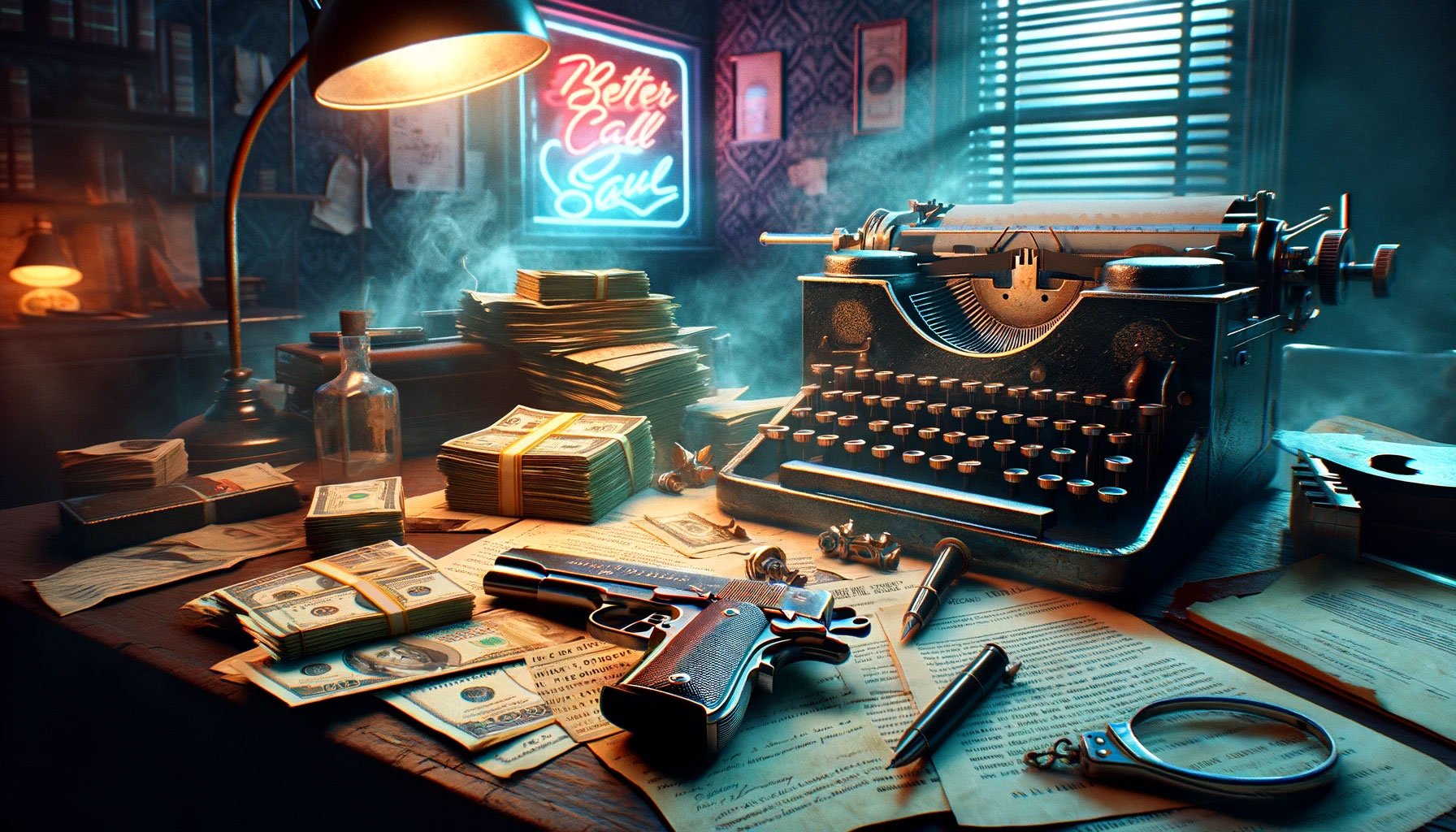
To understand the basics of using Dall-E 3 with ChatGPT, let's start with a simple example. Imagine I want to create a wallpaper reflecting the vibe of one of my all-time favorite shows, Better Call Saul. I'd start with a prompt like this:
A wallpaper in the style of Better Call Saul for my desktop. I want to capture the atmosphere of the show with a close-up of a dodgy scene, accurate details and without any characters.
My prior experience with Dall-E clued me in on a few things to look out for and avoid in the prompt:
- Requesting 'accurate details' is crucial. Without it, Dall-E might create messy or unrealistic elements.
- In this case, excluding characters is recommended to sidestep Dall-E trying to avoid personality right issues by accidentally producing a distorted version of Jimmy McGill.
- Pro tip: To get lifelike images, avoid terms like 'realistic' or 'photorealistic'. They're paradoxically ineffective. Ask for 'photo' instead.
As you can see, the output has its quirks — some odd patches on the left, undecipherable text on the documents, and a half handcuff on the right. But then, that is not entirely unimaginable in the BCS-universe. Now, let's take a look on how to refine and tweak the image.
Opening the image in ChatGPT and hitting the info button reveals the detailed prompt used in Dall-E:
A wallpaper capturing the gritty, criminal atmosphere of 'Better Call Saul', with accurate detailing. The scene is a close-up of a shadowy desk in a dimly lit room, artfully cluttered. On the desk, there's a stack of realistically rendered cash, slightly disheveled, next to a meticulously detailed revolver with a metallic sheen. Among these, scattered legal documents and a vintage typewriter are visible. The background, slightly blurred, shows a neon sign from a window casting a sinister red and blue glow, adding to the suspenseful mood. The scene is set in a rundown office with peeling wallpaper and a flickering overhead light, enhancing the feeling of a seedy, criminal underworld.
As you see, ChatGPT gets quite creative and turns my short prompt into a lengthy description. To generate new images with different details, you can copy the prompt and adjust it. But first, you should ask ChatGPT about gen_id – i.e. the unique Generation ID of an image that you can use to create endless variations of the image in the same style:
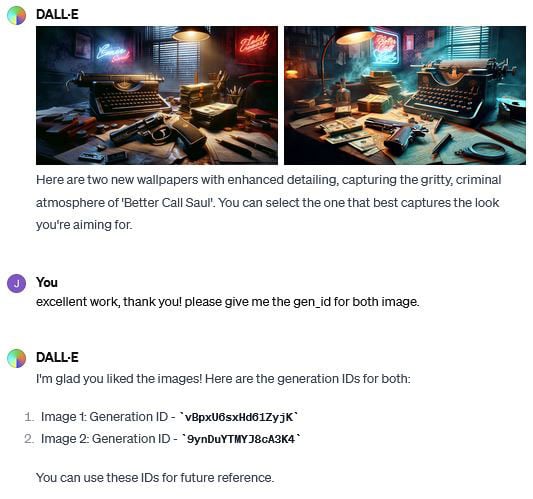
If you set up your own GPT or initiate a new session with Dall-E, you can request the automatic inclusion of the gen_id with each image generated. However, as with most custom commands, the success rate isn't 100% (see 'rich tapestry' debate). And ChatGPT may struggle to remember the gen_id of an image later in the conversation, so it's wise to always ask for the gen_id if it's not automatically provided.
To demonstrate, I used the following prompt:
In the style of the image with the gen_id 9ynDuYTMYJ8cA3K4 create an image of a scene that shows a pile of letters written by members of the Free Will Baptist Church, demanding the release of Huell Babineaux.
Here's the result — a new image with a similar style and the same focus and angle:
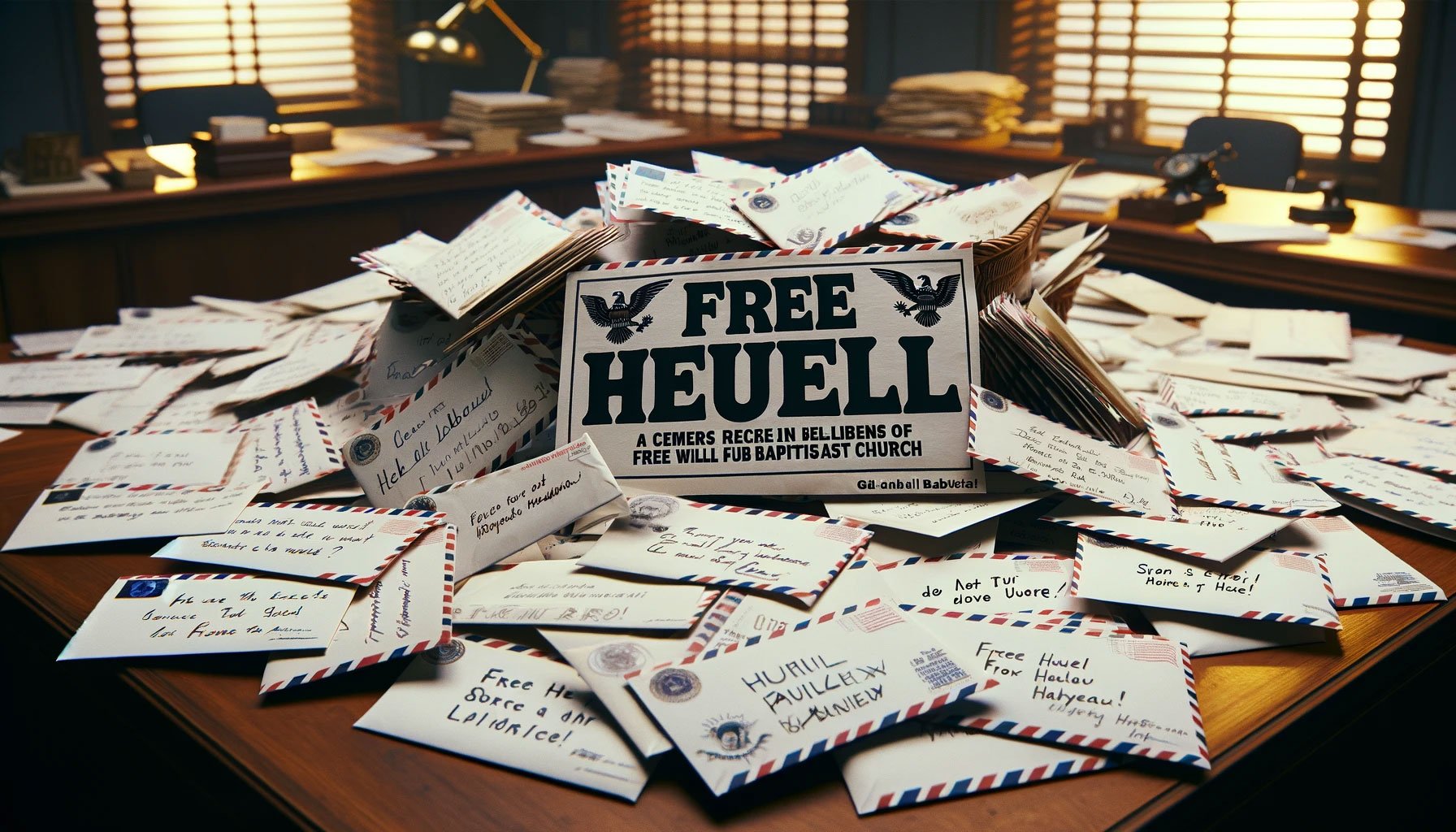
As you can see, Dall-E struggles with replicating coherent text, even in brief snippets. Trained primarily on visual data, it processes images in terms of shapes and patterns, not truly 'understanding' text. This leads to inaccuracies, especially with sophisticated details like letters or human hands. As one author points out, "Our brains can overlook slight deviations in a pencil's tip, or a roof — but not as much when it comes to how a word is written, or the number of fingers on a hand."
Nevertheless, Dall-E's proficiency with text is improving, currently hitting the mark about 80% of the time, and it's reasonable to anticipate even higher accuracy soon.
How to Create Realistic Portraits with Dall-E (e.g., of Your Favorite Cartoon Characters)
Despite these challenges with high-precision details, Dall-E excels in creating believable new faces. So, let's explore how to craft realistic portraits. While it might be an intriguing thought to create fictional offspring of unlikely pairs (e.g. John Oliver and Mary Todd Lincoln), there are limitations regarding celebrity portrayals. In fact, Dall-E is explicitly programmed to avoid generating images of public figures, and to steer clear of copying styles from artists active in the last century. Also, it's programmed to represent human groups diversely in terms of ethnicity and gender, particularly in scenarios traditionally prone to bias.
For realistic-looking photos, as mentioned earlier, it is crucial to avoid terms like "realistic" or "photorealistic." Instead, try incorporating specific photographic details into your prompts. Consider DSLR camera settings — angle, focus, lighting. If you're not a photography buff, Flickr can be a great source of inspiration. Simply find a photo you like, then check its metadata (click "show settings" beneath the camera icon) for details like aperture, exposure, ISO, and lens type, and include them into your prompt.
For an example that respects personality rights, let's craft a real-life version of a cartoon character, say, Rick from Rick and Morty. Drawing from a favored portrait's settings, I came up with this prompt:
A photo portrait of a real-life Rick from Rick & Morty. Black and white, high skin details. Camera settings: 85.0 mm lens, ISO 200, Aperture ƒ/8.0, Exposure Time 1/125 Sec.
Result:
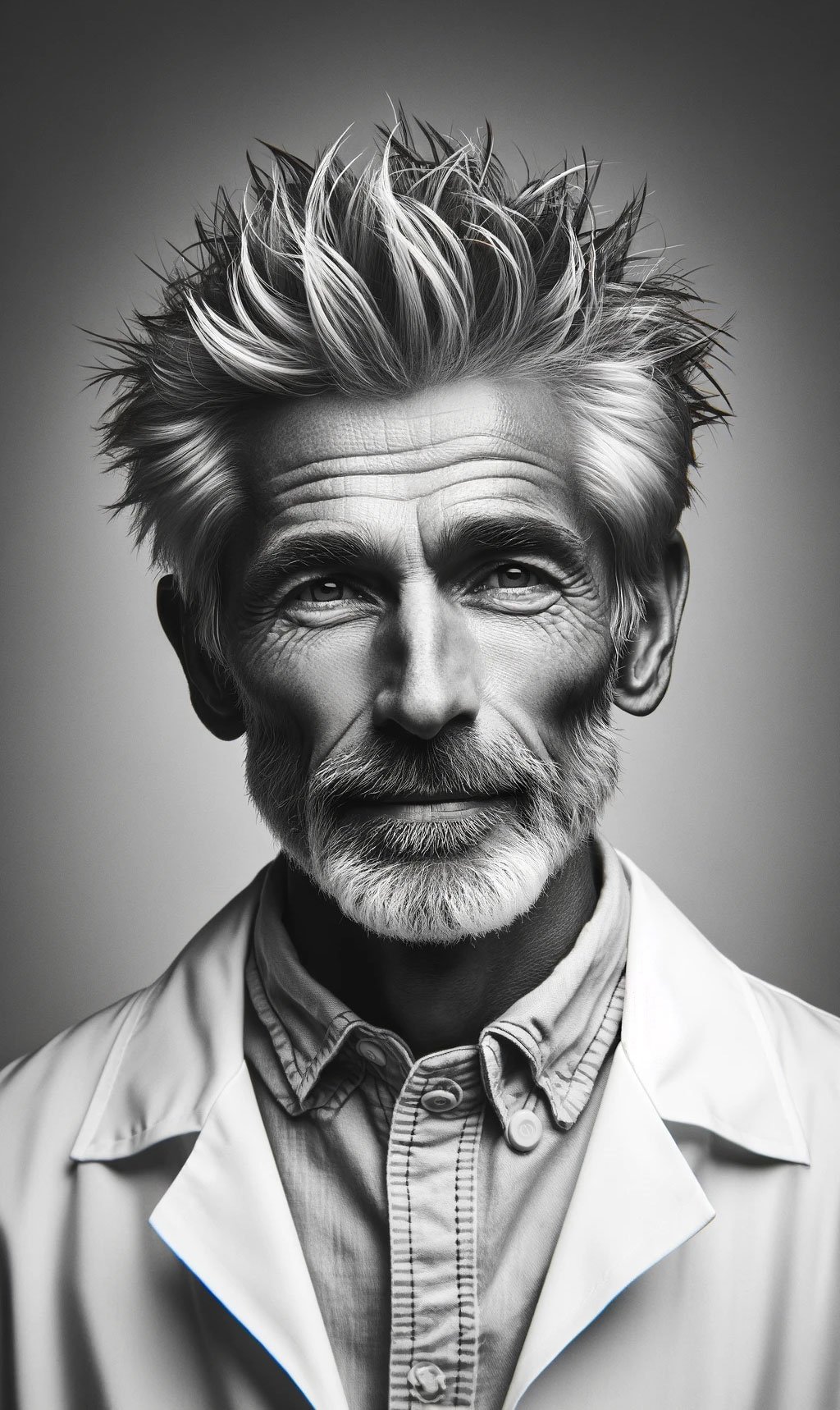
The portrait has its shortcomings. The eyes are a bit underwhelming in detail, and the hairline is a but blurry. But, overall, I'm content with how it turned out.
Finding and ideas for images in a variety of styles isn't hard. But to truly nail realism with Dall-E, it pays to get acquainted with basic photography principles. Once you're comfortable with a DSLR, it becomes easy to find the ideal 'settings' for your digital creations.
Learn How to Design Professional Logos (e.g., for an Evil Corporation)
Dall-E 3 simplifies the creation of professional logos for virtually any purpose. A key aspect of logo design is choosing the right format. Ideally, you should opt for 'vector' format. Why? Because vector graphics maintain their quality across different sizes and applications, making them versatile for future use.
When creating a logo, try asking for emblems or lettermark logos, and pick a specific style like pop art, abstract, or Bauhaus. To illustrate, I crafted a logo for a fictitious evil corporation named Oblivion Corp:
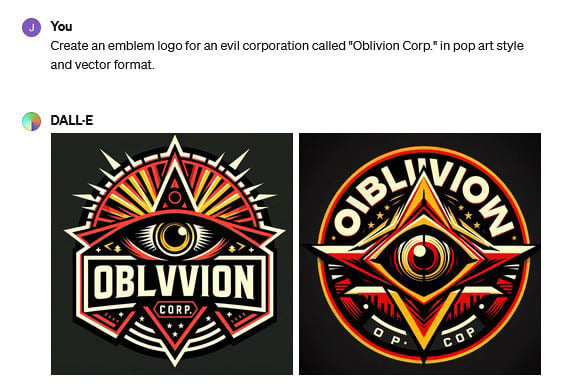
Indeed, as we've seen, AI image generators like Dall-E can stumble over text. For professional logos that require more elaborate text, you might still need to rely on good old Photoshop for some fine-tuning.
However, if you stick to text-free emblems, Dall-E's performance improves significantly. And when it comes to creating simple lettermarks, it also manages rather well:
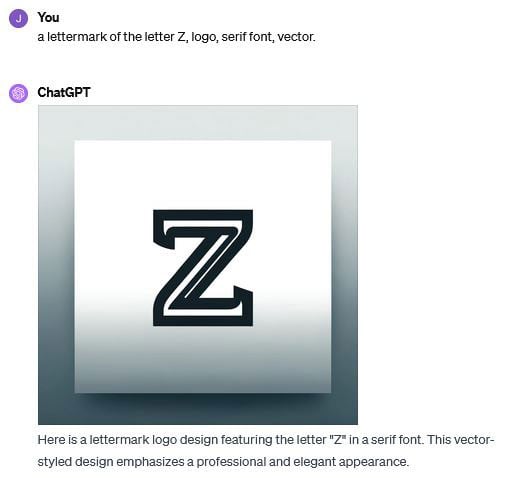
For those aiming for more elaborated designs, I suggest playing around with 'geometric letters. ' For further guidance, there are plenty of comprehensive guides out there on with AI.
Further Readings & More Ideas to Try Out
The world of AI image generation is full of creative possibilities. From crafting comic books to creating up one-of-a-kind wallpapers for your smartphone, Dall-E 3 has a lot to offer. It's a versatile tool for bringing your ideas to life.
If OpenAI’s restrictions and limitations are too much for your taste, it's worth exploring other players in the field like Midjourney or Stable Diffusion. Each of these platforms can be accessed via API, offering you a multitude of ways to tweak and fine-tune your output.