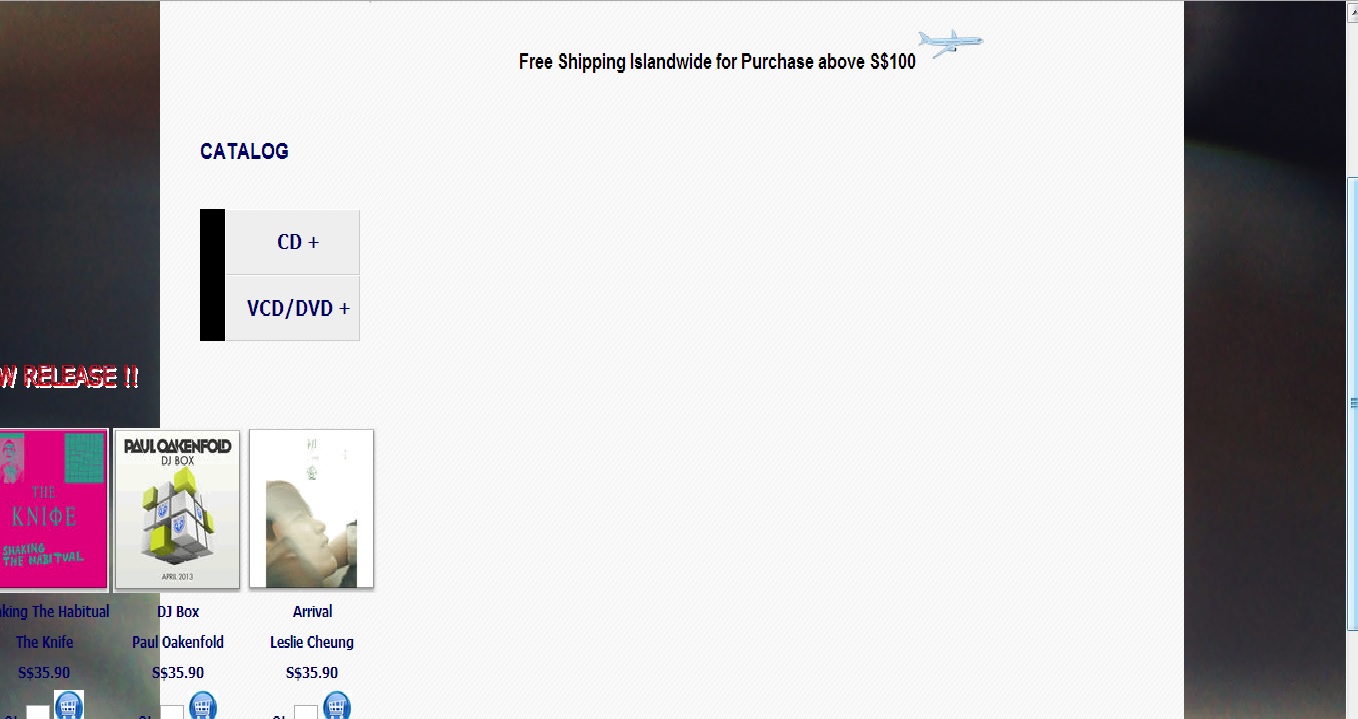
Hi, I've problem positioning the div. I would like to have the div (id=new, id=cd) position beside .navmenu instead of below .navmenu

Please see the code. Many thanks..

<div class="catalog">
<blockquote>
<h1 style="text-align: right;"><marquee direction="right">Free Shipping Islandwide for Purchase above S$100<img src="images/plane.png" width="70" height="40" alt=""/></marquee></h1><br />
<div id="left">
<div>
<p style="text-align: left; color: #006; font-family: Arial, Helvetica, sans-serif; font-size: large; font-weight:bold;">CATALOG</p>
<ul id="navmenu">  
<li><a href="#" onclick="show('CD'); hide('New'); hide('VCD')">CD +</a></li>
<li><a href="#" onclick="show('VCD'); hide('CD'); hide('New')">VCD/DVD +</a></li> 
</ul>
</div>
<div id="New" style="display:block;">
<table style="margin: auto; color:#006; position:inherit; font-weight:bold;">
<tr>
<td colspan="5"><img src="images/NewRelease.gif" alt=""/></td>
</tr>
<tr>
<td style="text-align: left; color: #000; font-size: medium;">
<u>VCD/DVD</u>
</td>
</tr>
<tr>
<td><img src="images/album_sm6.gif" width="130" height="130" /></td>
<td><img src="images/album_sm7.gif" width="130" height="130" /></td>
<td><img src="images/album_sm8.gif" width="130" height="130" /></td>
<td><img src="images/album_sm9.gif" width="130" height="130" /></td>
<td><img src="images/album_sm10.gif" width="130" height="130" /></td>
</tr>
<tr>
<td>G.e.m The Best Of</td>
<td>Miss You Much Leslie</td>
<td>Shaking The Habitual</td>
<td>DJ Box</td>
<td>Arrival</td>
</tr>
<tr>
<td>G.e.m</td>
<td>Leslie</td>
<td>The Knife</td>
<td>Paul Oakenfold</td>
<td>Leslie Cheung</td>
</tr>
<tr>
<td>S$35.90</td>
<td>S$35.90</td>
<td>S$35.90</td>
<td>S$35.90</td>
<td>S$35.90</td>
</tr>
<tr>
<td><form action="qty_form.asp">
Qty<input type="text" name="">
<img src="images/cartbtn.jpg" width="30" height="30" /></td>
<td>Qty<input type="text" name="">
<img src="images/cartbtn.jpg" width="30" height="30" /></td>
<td>Qty<input type="text" name="">
<img src="images/cartbtn.jpg" width="30" height="30" /></td>
<td>Qty<input type="text" name="">
<img src="images/cartbtn.jpg" width="30" height="30" /></td>
<td>Qty<input type="text" name="">
<img src="images/cartbtn.jpg" width="30" height="30" /></form></td>
</tr>
</table>
</div>
<div id="CD" style='display:none'>
<table style="margin: auto; color:#006; position:inherit; font-weight:bold;">

</table>
</div>

<!-- CSS STYLE -->

.catalog {
    background-image: url(images/background.png);
    background-repeat: repeat;
    float: right;
    clear: none;
    width: 1024px;
    height: auto;
    font-family: Tahoma, Geneva, sans-serif;
    font-size: 12px;
    text-align:center;
    padding-top: 0px;
    padding-right: 0px;
    padding-bottom: 0px;
}

#CD {
    font-family: Tahoma, Geneva, sans-serif;
    font-size: 12px;
    text-align:center;
}

#New {
    font-family: Tahoma, Geneva, sans-serif;
    font-size: 12px;
    text-align:center;
}

#left {
    background-image: url(images/background.png);
    background-repeat: repeat;
    float: left;
    min-height: 300px;
    height: auto;
    clear: none;
    width: 210px;
    padding: 0px;
    z-index: 10;
}

<!-- END OF CSS STYLE -->

Dani AI

Generated

The real problem is structural: the content panels (#New, #CD) are placed inside the left column so they naturally stack under the nav. The nav and the main content need to be siblings so the layout engine can place them side‑by‑side.

A minimal HTML fix (move the content out of the left column so nav and content are siblings):

<div class="catalog">
  <div id="left">
    <!-- catalog heading + #navmenu -->
  </div>

  <div id="content">
    <div id="New"> ... </div>
    <div id="CD"> ... </div>
  </div>
</div>

A robust modern CSS solution is to make the container a flexbox so the left nav keeps a fixed column width and the content fills the remaining space:

.catalog {
  display: flex;
  align-items: flex-start;
  gap: 20px;       /* space between columns */
}
#left { flex: 0 0 210px; }  /* fixed nav column */
#content { flex: 1; }       /* main content grows */
#New, #CD { width: 100%; }  /* content blocks fill the content column */

Notes and troubleshooting

  • was on the right track by separating the right column into a sibling wrapper; that’s the structural change required.
  • Absolute positioning (as suggested by ) will place elements where wanted but removes them from normal flow and breaks responsiveness—avoid it for a main layout.
  • Inline‑block (noted by ) can work, but watch whitespace and baseline alignment quirks.
  • If legacy browser support is needed, use a simple float + content margin approach as a fallback. Also validate HTML for missing/incorrect closing tags (a common cause of elements jumping to unexpected positions) and use the browser inspector to check computed widths and float behavior.

Recommended Answers

All 4 Replies

check i have made correction and this code is works fine as you want.

<!DOCTYPE html PUBLIC "-//W3C//DTD XHTML 1.0 Transitional//EN" "http://www.w3.org/TR/xhtml1/DTD/xhtml1-transitional.dtd">
<html xmlns="http://www.w3.org/1999/xhtml">
<head>
<meta http-equiv="Content-Type" content="text/html; charset=utf-8" />
<title>Untitled Document</title>
<style type="text/css">
    .catalog {
    background-image: url(images/background.png);
    background-repeat: repeat;
    float: right;
    clear: none;
    width: 1024px;
    height: auto;
    font-family: Tahoma, Geneva, sans-serif;
    font-size: 12px;
    text-align:center;
    padding-top: 0px;
    padding-right: 0px;
    padding-bottom: 0px;
    }
    #CD {
    font-family: Tahoma, Geneva, sans-serif;
    font-size: 12px;
    text-align:center;
    }
    #New {
    font-family: Tahoma, Geneva, sans-serif;
    font-size: 12px;
    text-align:center;
    }
    #left {
    background-image: url(images/background.png);
    background-repeat: repeat;
    float: left;
    min-height: 300px;
    height: auto;
    clear: none;
    width: 180px;
    padding: 0px;
    z-index: 10;
    }
#right { float:right;}
</style>
</head>

<body>
    <div class="catalog">
        <h1 style="text-align: right;"><marquee direction="right">Free Shipping Islandwide for Purchase above S$100<img src="images/plane.png" width="70" height="40" alt=""/></marquee></h1><br />
    <div id="left">
    <p style="text-align: left; color: #006; font-family: Arial, Helvetica, sans-serif; font-size: large; font-weight:bold;">CATALOG</p>
    <ul id="navmenu">
    <li><a href="#" onclick="show('CD'); hide('New'); hide('VCD')">CD +</a></li>
    <li><a href="#" onclick="show('VCD'); hide('CD'); hide('New')">VCD/DVD +</a></li>
    </ul>
    </div>

    <div id="right">
    <div id="New" style="display:block;">
    <table style="margin: auto; color:#006; position:inherit; font-weight:bold;">
    <tr>
    <td colspan="5"><img src="images/NewRelease.gif" alt=""/></td>
    </tr>
    <tr>
    <td style="text-align: left; color: #000; font-size: medium;">
    <u>VCD/DVD</u>
    </td>
    </tr>
    <tr>
    <td><img src="images/album_sm6.gif" width="130" height="130" /></td>
    <td><img src="images/album_sm7.gif" width="130" height="130" /></td>
    <td><img src="images/album_sm8.gif" width="130" height="130" /></td>
    <td><img src="images/album_sm9.gif" width="130" height="130" /></td>
    <td><img src="images/album_sm10.gif" width="130" height="130" /></td>
    </tr>
    <tr>
    <td>G.e.m The Best Of</td>
    <td>Miss You Much Leslie</td>
    <td>Shaking The Habitual</td>
    <td>DJ Box</td>
    <td>Arrival</td>
    </tr>
    <tr>
    <td>G.e.m</td>
    <td>Leslie</td>
    <td>The Knife</td>
    <td>Paul Oakenfold</td>
    <td>Leslie Cheung</td>
    </tr>
    <tr>
    <td>S$35.90</td>
    <td>S$35.90</td>
    <td>S$35.90</td>
    <td>S$35.90</td>
    <td>S$35.90</td>
    </tr>
    <tr>
    <td><form action="qty_form.asp">
    Qty<input type="text" name="">
    <img src="images/cartbtn.jpg" width="30" height="30" /></td>
    <td>Qty<input type="text" name="">
    <img src="images/cartbtn.jpg" width="30" height="30" /></td>
    <td>Qty<input type="text" name="">
    <img src="images/cartbtn.jpg" width="30" height="30" /></td>
    <td>Qty<input type="text" name="">
    <img src="images/cartbtn.jpg" width="30" height="30" /></td>
    <td>Qty<input type="text" name="">
    <img src="images/cartbtn.jpg" width="30" height="30" /></form></td>
    </tr>
    </table>
    </div>
    <div id="CD" style='display:none'>
    <table style="margin: auto; color:#006; position:inherit; font-weight:bold;">
    </table>
    </div>
    </div>

</body>
</html>

Hi Ansaripk, Thanks. I've tried. The div position at the very left side of the page. You can see from the 497ef7d1f545f3b5bcbbd3754a2809f6497ef7d1f545f3b5bcbbd3754a2809f6497ef7d1f545f3b5bcbbd3754a2809f6 attached pic.

You should try changing the position from inherit to absolute! Then you would have much more control over the div tag.

Like for example:

#cd,new{
    position:absolute;
    left: 15%;
    top: 20%;
    etc...
}

Hope this helps!

Be a part of the DaniWeb community

We're a friendly, industry-focused community of developers, IT pros, digital marketers, and technology enthusiasts meeting, networking, learning, and sharing knowledge.