Hello
How can I know what font was used to add a text in an image when I open it in photoshop (no psd etc availabale, only a png file)... When open it has only 1 layer...

Dani AI

Generated

Short answer for : once text has been flattened into a PNG you cannot recover the original PSD/text layer or any embedded font metadata (as already pointed out). That said, there are reliable, practical workflows to identify or faithfully reproduce the look without the original file — faster than scrolling through your whole font menu and often more accurate than pure guesswork.

Helpful workflow (prepare the image first)

  • Crop a tight, high‑resolution sample of a full word or several distinct characters.
  • Straighten the baseline and increase contrast (use Image > Adjustments > Levels or Threshold) so letter shapes are crisp.
  • Remove background noise and separate touching letters (clone/heal or carefully erase) — matchers and human experts need clean, isolated glyphs.
  • Resize so the capital height is at least ~100–200 px; tiny glyphs confuse automated tools.

How to identify

  • Run a matcher with the cleaned sample (many services exist) and compare candidates.
  • Do a quick visual triage first: note whether a and g are single- or double‑storey, serif shape, terminal styles (teardrop, flat, blunt), the shape of R and Q, x‑height vs cap height, and stroke contrast. Those features narrow families fast. This complements ’s “type and compare” idea — but with a shorter candidate list.

Recreate the effect

  • Once you have a candidate, type the text and convert to outlines (Type > Convert to Shape in Photoshop or Create Outlines in Illustrator) to refine spacing, warp (Edit > Transform > Warp) or add the same layer styles. For stubborn matches, trace the raster (Illustrator Image Trace) and compare outlines at 100% to confirm.
  • If the image is from a web page, inspect the site’s CSS first — the original font-family may still be visible. If you want help, follow ’s offer and post a clean, full‑size crop and the exact text string; include whether it’s print or web and an approximate size so volunteers here can test matches.

Note: check font licensing before using a found font commercially.

Recommended Answers

All 11 Replies

Member Avatar for Member #334542

Then you should identify only by typing the text with the same size on the same position and change the font from the drop down to know which one is suitable for that.

ok but it seems like a very long way to get the desired font as the list contains too many, is there no simpler way of doing this, like reverting back the png to its source?

The only easy way if u cnt compare the fonts is 2 hv the psd file of it..

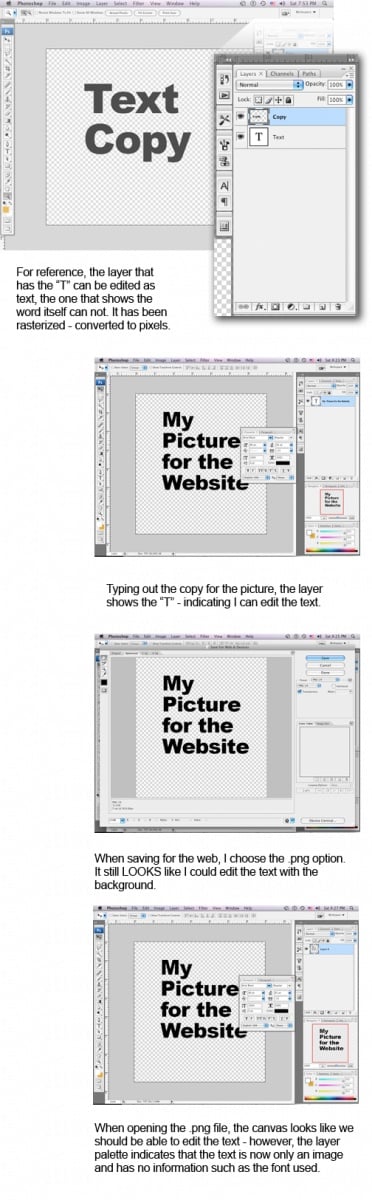
Unfortunately, no. Once the image is saved to a png file it no longer has the information on the font used. The image has been flattened and the text is no longer separate from the image. It has been rasterized, meaning the font outlines which are a vector/postscript have been interpreted into pixels to fit that file format.

The image attached shows the reason why when viewed in photoshop. And, no - you can not revert the png back to a psd and have all of the layers. You would need to have or save a copy of the file as the native psd file before it was flattened to a png.

ok thx anyways for replying, was just hoping could somehow be able to revert the png back to psd and thus get the required layers and texts font

just being curious, in cs5 as well no option of doing something like this??

nope, it is still the same issue - the image has been flattened and loses the font information.

oki then, thx again

You could post your png here! including myself, there are MANY font experts here :)

'Hello im a newbie hope to become valuable member'
<FAKE SIGNATURE>

Be a part of the DaniWeb community

We're a friendly, industry-focused community of developers, IT pros, digital marketers, and technology enthusiasts meeting, networking, learning, and sharing knowledge.