Hi,

In 4 days , my server hosting went non-functional due to critical low space in the / folder that finally i have to seek support to help delete the backups. Nothing works during those times like email, ssh, ftp, sites .. :(

The backups folder had 350GB of databackup and got some space deleting some backup archives by support. yet again, space went critically down in 4 days of previous down time.
Filesystem Size Used Avail Use% Mounted on
/dev/sdb3 450G 406G 26G 95% /
/dev/sdb1 99M 17M 78M 18% /boot
tmpfs 1.6G 0 1.6G 0% /dev/shm
/dev/sda1 459G 41G 395G 10% /home2
/usr/tmpDSK 9.5G 150M 8.9G 2% /tmp

The above was the data before i raised a ticket for support assistance.

On my query, there suggestion was the below:-
With the servers valid data being quite large, you may wish to limit the backup retention to a simple weekly backup, rather than including monthly and daily backups. This would limit the amount of space that the backups would take.

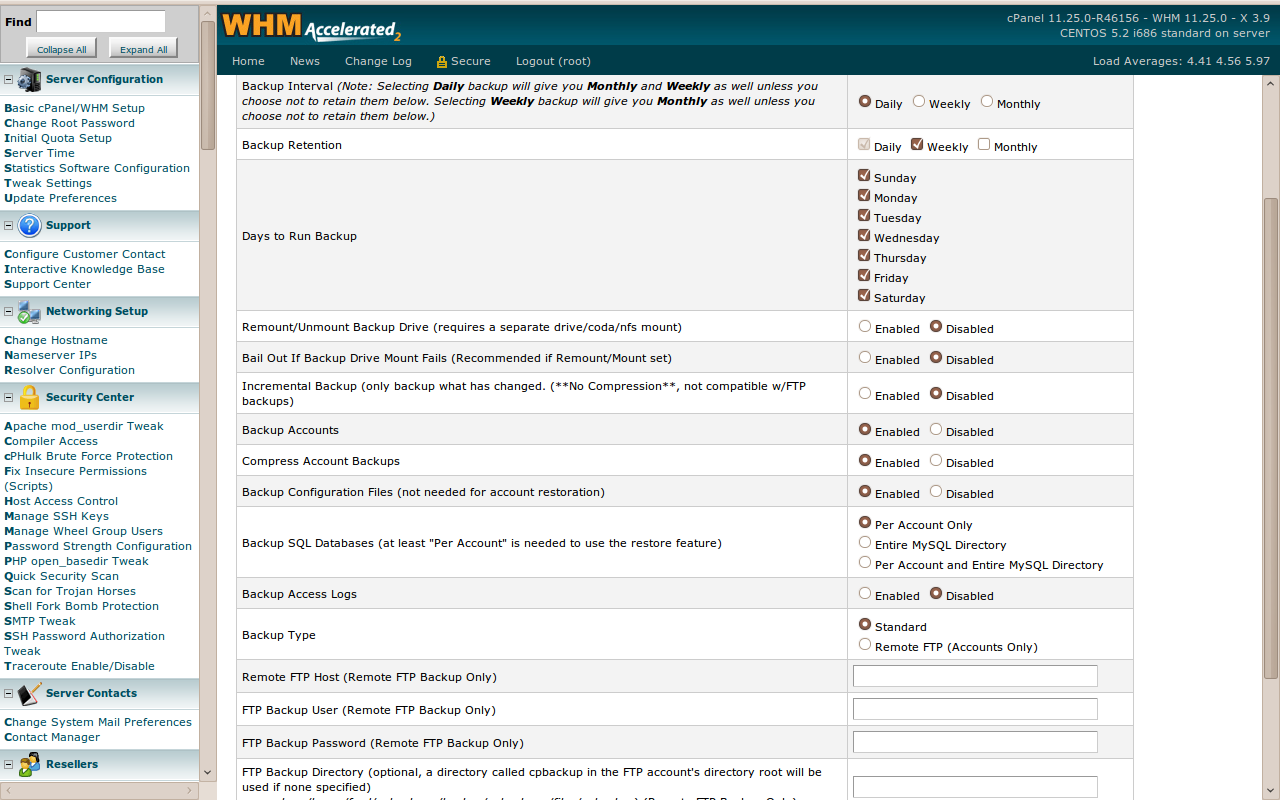
What should I do ? How should I configure the backup from the cpanel ? Should i do daily backups or weekly or monthly? I am not able to set daily backups and prefer only weekly retention.

how is this option "Incremental Backup (only backup what has changed. (**No Compression**, not compatible w/FTP backups)" ? Should I enable this ?

Please help me with suggestion.

Note: One site is critical and needs daily backups . rest is fine with weekly retentions.
Backup happens to folder /Backups folder. its not in home folder.


Regards,

Harish Balakrishnan Marar

Dani AI

Generated

Short expert summary and a practical plan.

The immediate problem is that backups are sitting on the same root filesystem that must stay healthy for mail, SSH and web services. As noted, one site needs daily protection; as pointed out, relocating the backup tree off the root filesystem is the quickest way to stop outages. Moving the existing archive set to a separate mount (or off‑server) and changing the cPanel backup target so that new archives land on that larger volume will remove the immediate pressure — copy and verify before deleting the originals so nothing is lost.

A simple, safe retention policy that balances space and recovery speed:

  • Critical site: keep daily snapshots for 7–14 days.
  • Other sites: keep weekly snapshots for 8–12 weeks.
  • Long term: keep monthly snapshots for 6–12 months if required for audits.
    Use incremental daily backups to save space but break the incremental chain with periodic full backups (for example a weekly or monthly full) so restores stay practical. If deduplication or compression is needed, prefer backup software that supports them rather than raw uncompressed incrementals.

Operational points often missed here: always keep at least one copy off the host (remote server or cloud) so a single disk failure does not destroy both data and backups; monitor both disk usage and inode counts with automated alerts well below failure thresholds; identify runaway growth (database binlogs, web logs, tmp directories) and rotate/truncate those logs. For database-backed sites use a database-aware export or snapshot mechanism so backups are consistent, and make regular restore tests part of the routine.

Combining ’s relocation approach with an explicit retention schedule, offsite copies, and regular restore tests will stop repeated downtime and make recovery predictable.

Recommended Answers

All 4 Replies

A couple of question before I make a suggestion:

What are you actually backing up (which directories)?

What application do you use for the backup (tar, cpio, customer utility, etc.)?

You have 395GB free in /home2. If you data is all in the / directory and so are your backups and the filesystem crashes you would lose both. Why don't you backup to the /home2 partition? If /home2 fills up you would still have room in / so email and your web sites would continue to work.

A couple of question before I make a suggestion:

What are you actually backing up (which directories)?

What application do you use for the backup (tar, cpio, customer utility, etc.)?

You have 395GB free in /home2. If you data is all in the / directory and so are your backups and the filesystem crashes you would lose both. Why don't you backup to the /home2 partition? If /home2 fills up you would still have room in / so email and your web sites would continue to work.

Hi rch1231,

Thanks for the pointers. I have attached with this a screenshot of my cpanel for backup configuration. Right now the backup happens to /Backup folder which I think as per your suggestion should be in /home2/Backup. Hope i got this right.

what am i Backing up?
Server directories of staging projects and database backup.

Thanking you, I remain

Harish Balakrishnan Marar

Hello again,

Well looking at the configuration here is what I would do.

Recap:
SCSI Disk b partition 3 ==>  /dev/sdb3 450G 406G 26G 95% /
SCSI Disk b Partition 2 ==>  Probably Swap space.
SCSI Disk b Partition 1 ==>  /dev/sdb1 99M 17M 78M 18% /boot
SCSI Disk a Partition 1 ==>  /dev/sda1 459G 41G 395G 10% /home2

You have already used 41G on the sda1 partition which is more than the 26G you have available on sdb1.

You have two options depending on what is in /home2. The following steps would need to be done by the user root or with sudo.


OPTION 1: The quick fix.

1) Copy /Backup to /home2/Backup

cp -RP /Backup /home2/
or if you want to monitor the progress.
cp -RPv /Backup /home2/

2) Verify the copy got everything by confirming the directories use the same amount of space. If not find out what is different.

du -s /Backup
du -s /home2/Backup

3) Once you are SURE everything made it run a list command to check you are deleting the right directory then replace the ls with rm :

/bin/ls -R /Backup/*
/bin/rm -R /Backup/*

4) check available disk space

df

5) remove the old /Backup directory now that it is empty and create a link called /Backup that points to /home2/Backup. rmdir will only let you remove an empty directory.

rmdir /Backup
ln -s /home2/Backup /Backup

Option 2: The long term solution. This involves moving the files in /home2/ to a subdirectory (could be /home2/hold/) then move /Backup to /home2/Backup but afterward you umount /dev/sda1 as /home2 and remount it as /Backup and move the other files from the temporary subdirectory to a new directory created under / called home2.

1) Create directory to hold what is in /home2

mkdir -p /home2/hold

2) Run a script that will move the directories from /home2 to /home2/hold except for the directory /home2/hold that you just created.

for x in `/bin/ls /home2 | grep -v hold `
do
mv /home2/$x /home2/hold/$x
done

3) *****INSERT Quick Fix steps 1, 2, 3, 4 here.

4) Unmount the /dev/sda1 partition off of /home2 and mount it as /backup

umount /dev/sda1
mount /dev/sda1 /Backup

5) Remove the now empty /home2 dir and then move the "hold" directory back in place as /home2.

rmdir /home2
mv /Backup/hold /home2

6) Then edit the /etc/fstab file and change the mount point of /dev/sda1 from /home2 to /Backup so when the system reboots everything is in the right place.

If you would like some help let me know.....

commented: solution not one but two and detailed in clearly that it aided me throughout as reference. great. +6

Hi rch1231,

Thanks a lot for the patience and consideration and giving me such a detailed alternatives.

Wishing you a nice day, I remain

Harish Balakrishnan Marar

Be a part of the DaniWeb community

We're a friendly, industry-focused community of developers, IT pros, digital marketers, and technology enthusiasts meeting, networking, learning, and sharing knowledge.