Take a look at the attached image to see what I am trying to do. There will be two images. Images1 is what I want. Image 2 is what my code does.

The issue is the stuff inside link are not center.
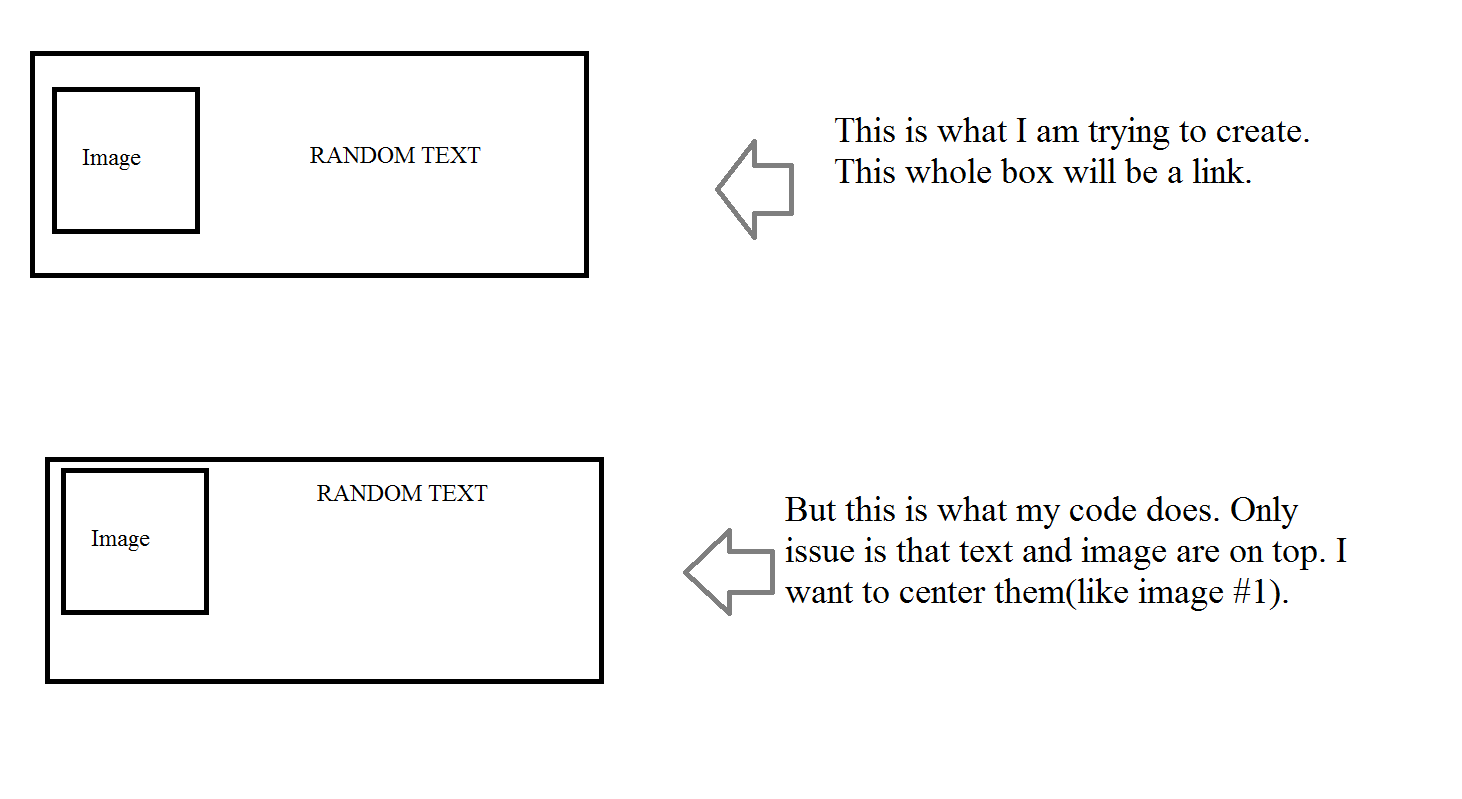
problem.png

Html code:

<div id="table">
    <table>
        <tr bgcolor="#FFFFFF">
            <td>
                <a href="google.com">
                    <img src="Images/google.png"  />
                    <span>google</span>
                </a>
            </td>
        </tr>
    </table>
</div>

my CSS code

#table table
{
    color: #4281A4; /*dark blue*/
    font-weight: bold;
    width: 100%;
}

#table table tr td
{
   border: 1px solid #dedede;
   text-align: center;
   height: 100px;
}

#table table tr td:hover
{
    background-color: #c4c4c4;
}

#table table tr td img
{
    width: 50px;
    height: 50px;
    float: left;
    padding-left:15px;

}

#table table tr td a
{
    display: block;
    height: 100%;
}


#table table tr td a span
{

}

Dani AI

Generated

Short version: the image is floated, so it’s taken out of the normal flow and the text can’t be vertically centered next to it. Some good pointers already in the thread — and correctly pointed at vertical-centering techniques, and showed absolute-position workarounds — but a simpler, more robust solution is to stop floating the image and let CSS layout do the centering for you.

Why floats fail here

  • A floated img is removed from normal flow, so the inline text and the anchor can’t be aligned as a single horizontal row.
  • Absolute-positioning can work, but it’s brittle (harder to maintain if sizes change).
  • Centering the whole table horizontally (as suggested) won’t help vertical alignment inside each cell.

Recommended fix (modern, simple, resilient)

  • Remove the float on the image.
  • Make the link itself a flex container so its children (icon + label) are laid out in a row and vertically centered.
  • Keep the link filling the cell if you want the whole cell clickable.

Example CSS (drop into your stylesheet):

#table td a {
  display: flex;
  align-items: center;   /* vertical centering */
  justify-content: center; /* optional: center horizontally */
  width: 100%;           /* keep full-clickable area */
  height: 100%;
  color: inherit;
  text-decoration: none;
}

#table td a img {
  width: 50px;
  height: 50px;
  margin-right: 12px; /* spacing between icon and text */
  display: block;
}

Extra notes

  • If you must support very old browsers, use inline-block elements with matching vertical alignment as a fallback, but flexbox is well supported in modern browsers and far easier to maintain.
  • Add an appropriate alt attribute for the image and meaningful link text for accessibility.
  • If this is for layout rather than tabular data, consider replacing the table with a semantic list/grid and use the same flex approach for each item.

Recommended Answers

All 6 Replies

play with css vertical-align: middle;

Find the link how to use the vertical-align: middle;.

Member Avatar for Member #120589

VA is a git. There have been some pretty cool workarounds. The most recent one I came across is this:

http://codepen.io/webinsation/pen/GCuhm

Which I like a lot.

commented: good stuff.. nice,will add to my collection of snipets +12

another way around:(using existing code)

<div id="table">
    <table>
        <tr bgcolor="#FFFFFF">
            <td>
                <a href="google.com">
                    <img src="Images/google.png"  />
                    <span>google</span>
                </a>
            </td>
        </tr>
    </table>
</div>

playing with css

td a{
    position: relative;
}
td a *{
    position: absolute;
    top:0;
    bottom:0;
    margin: auto;
}
Member Avatar for Member #120589

Most fixes I've seen have an absolute container and then an inner relative element.

try to add

#table table {
margin: 0 auto;
}
Be a part of the DaniWeb community

We're a friendly, industry-focused community of developers, IT pros, digital marketers, and technology enthusiasts meeting, networking, learning, and sharing knowledge.