iPhone 4 Carrier Unlock Released. Ultrasn0w Updated in Cydia

PCBrown 0 Tallied Votes 669 Views Share

Once an iPhone firmware is jailbroken, it is only a matter of time before the hackers that be are able to unlock the phone as well. Late last night, a group of iPhone hackers, the Dev-Team, released an update for their app, ultrasn0w. This allows people to remove the carrier restrictions and use the iPhone on any other supported carrier. It is only compatible with iPhone 4 baseband 01.59 and 3G/3GS basebands 04.26.08, 05.11.07, 05.12.01 and 05.13.04. If you have no idea what a baseband is, do some research , or reconsider the unlock all together. Again, this process is only meant for people trying to use an iPhone on a carrier other than AT&T.

Enabling the unlock is easy and only slightly more complicated than the jailbreak method released on Monday. First of all, you have to jailbreak your phone. In order to do that, just head to www.jailbreakme.com in Safari on your phone, and follow the instructions. After the phone reboots and you've successfully jailbroken the device, open the third-party app store, Cydia. It will check for updates when you first open it. Let Cydia finish updating and reload before the next step.

Once Cydia is finished updating, click “Manage”, then “Sources”, then “Edit” in the top right corner, followed by “Add” on the top left. You then want to enter the address for the software repository that contains, repo666.ultrasn0w.com. Once that's added, allow Cydia to reload data once again. Finally search for ultrasn0w, install the app, and let your phone restart.
[youtube]_5cvPyVGzgU[/youtube]Et Voila! You can now use your phone on a non-AT&T supported carrier, which if you live in the US, would be T-Mobile. The sad news, of course, is that T-Mobile uses non-standard 3G frequencies and will only achieve 2G/Edge speeds on the iPhone. I have used T-Mobile with my iPhone 3G for over a year and it's something I've gotten used to. I just pretend that 3G is a myth, and go about my day.
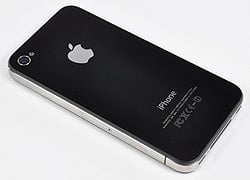
[ Engadget]

Dani AI

Generated

Good concise write-up from — the unlock update discussed was published by the iPhone Dev‑Team and received wide coverage at the time. The team’s post explains the release and the reason for a cautious approach to firmware/baseband updates. (Dev‑Team announcement). (blog.iphone-dev.com)

Two preparation steps that many guides skip: make a full local backup with iTunes (or Finder) and save your device’s signing blobs (SHSH). Saving SHSH lets you revert or restore to a firmware you can jailbreak later; tools such as TinyUmbrella were commonly used for this and are still the standard reference for SHSH workflows. (How to save SHSH with TinyUmbrella). (imore.com)

A few practical troubleshooting items for the frequent “Searching/No Service” symptom after an unlock:

  • Toggle Airplane Mode, then turn it off.
  • Restart the phone and reinsert the SIM.
  • Run Settings → General → Reset → Reset Network Settings.
  • Check for a carrier settings update and contact the carrier if service still fails.
    Apple’s support notes cover these basic reconnection steps. (Apple: If you see SOS, No Service, or Searching). (support.apple.com)

A couple of important cautions: do not perform standard Apple restores or iOS updates without confirming a method that preserves the current baseband — doing so can permanently remove an ultrasn0w‑style unlock (the Dev‑Team repeatedly warns about this). Also verify the IMEI/blacklist status on any used phone before unlocking; an unlock will not clear a device that carriers have blocked for theft or unpaid accounts. (Wired coverage of the unlock release; IMEI check guidance). (wired.com)

If any of the above is unclear or the phone is tied to a contract or reported lost, pause and research those specific issues before proceeding. (blog.iphone-dev.com)

Be a part of the DaniWeb community

We're a friendly, industry-focused community of developers, IT pros, digital marketers, and technology enthusiasts meeting, networking, learning, and sharing knowledge.