I'm used to use F5 to refresh, but with my new laptop, windows 7, the F5 takes me to my homepage. Can you please tell me how to fix it?

Dani AI

Generated

As noted, many notebook vendors map the F-keys to hardware actions or launcher keys by default (and, as observed, this happens on non‑HP models too). Below are concise diagnostics, a safe temporary bypass, and a simple software remap that avoid repeating the BIOS steps already posted in the thread.

Quick diagnostic: open Notepad and press F5. Notepad normally inserts the current time/date when it receives a standard F5 key event. If time/date appears, the physical key is sending F5; if a browser opens or brightness changes instead, the laptop’s hotkey layer is intercepting the press. Try holding the Fn key or toggling an Fn‑Lock (often Fn+Esc on many keyboards) to see if behavior reverses.

Simple, noninvasive workaround (AutoHotkey): map the browser-home/launcher key to act as F5. Save and run a small AutoHotkey script like this:

; AutoHotkey v1 — remap browser/home key to act as F5
Browser_Home::Send {F5}

Save as a .ahk file and run it; add a shortcut to the Startup folder to run it automatically. If that mapping has no effect, use AutoHotkey’s KeyHistory to identify the actual virtual key or scan code the laptop sends and adjust the script accordingly.

Persistent fixes and cautions: reinstall or update the vendor hotkey/keyboard utility, use a scancode editor (SharpKeys or equivalent) to write a permanent Scancode Map, or enable the action-key swap in firmware if the model exposes it. Firmware changes and registry edits should be done carefully and only after backing up important data. Thread status was toggled earlier by and ; documenting which method solved the problem helps future readers.

Recommended Answers

All 8 Replies

I think your new computer is an HP/Compaq LAPTOP. Right?

If so, the problem is that you have to press the "Fn" key at the bottom left of your LAPTOP keyboard.
HP has some stupid setting so that pressing F5 actually "opens your default browser", and the other Fkeys do things like volume and screen brightness.

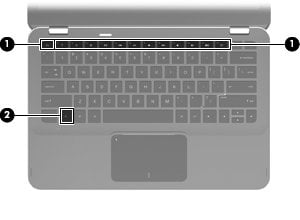
See the picture below, in the attachments.

You can disable this setting, Hewlett Packard actually has a link on their website, That shows you how to do it.

I am reprinting it on this forum, in full, in case the link gets broken:

On most HP and Compaq notebook PCs, it is necessary to press and hold the function key (fn) while pressing one of the f1 through f12 keys to activate the default functions; such as, increasing or decreasing the brightness of the display, the sound volume, sleep, keyboard lock, etc. On the HP Envy notebooks and other notebooks with advanced BIOS options, the function keys can be configured so that it is not necessary to press and hold the fn key.

1 - Function Keys f1 through f12
2 - Configurable Function key fn

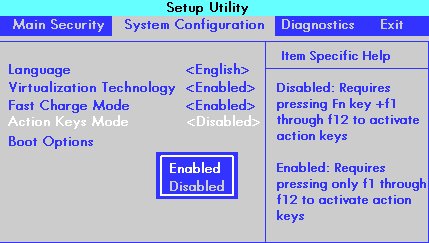
Disable fn in the BIOS
To disable, or enable, the function key (fn) in the BIOS, do the following steps.

  1. Press the power button to turn on the computer.
  2. Press the f10 key to open the BIOS setup window.
  3. Use the right-arrow or left-arrow keys to navigate to the System Configuration option.
  4. Use the up-arrow or down-arrow keys to navigate to the Action Keys Mode option, and then press the enter key to display the Enable / Disable menu.
  5. Select the desired mode:
    *Disabled : Requires pressing fn key + f1 through f12 to use the action as indicated on the action key.
    For example, if Disabled , pressing fn + f11 will mute the sound as indicated on the key on this model PC. Alternatively, pressing f11 only will minimize and maximize a web browser if open.
    The action keys may vary depending on the model of notebook.
    *Enabled : Requires pressing only f1 through f12 to use the action as indicated on the action keys.
    For example, if Enabled , pressing f11 only will mute the sound as indicated on the key on this model PC. Alternatively, pressing fn + f11 will minimize and maximize a web browser if open.
    The action keys may vary depending on the model of notebook.
  6. Press f10 key to save the selection and restart the computer.

The function key (fn) option can be reset at any time.

The other image below shows the correct BIOS screen mentioned in the quote.

Please come back and mark this post as solved if I have helped you to fix it :)

You're right. It's an HP.
Thank you very much for your answer.

That's great.

If you "mark this thread as solved", then the person who posted last (hopefully the person that gave you the solution if you are careful) gets brownie points. Could I have some brownie points, please?

I haven't fix it yet, but I guess you deserve a brownie already :)
But... how do I mark it as solved??

I haven't fix it yet, but I guess you deserve a brownie already :)
But... how do I mark it as solved??

in you other post you made it sound like the answer fix your problem ,you shouldn't have marked it solve until its actually fixed ,now other helpers will not look in to this thread

Now marked as unsolved until the OP confirms the problem is resolved.

Now marked as unsolved until the OP confirms the problem is resolved.

Sorry, I must have confused OP earlier.

Member Avatar for Member #921150

Not just HP. Mine is dell and its also similar (f5 is brightness though)

Be a part of the DaniWeb community

We're a friendly, industry-focused community of developers, IT pros, digital marketers, and technology enthusiasts meeting, networking, learning, and sharing knowledge.