Hello All:

I am new to this form of potential problem solving however, information never acted upon is a solution never arrived at.

I have a PC on XP and one day my sounds dissappeared from my speakers (that are integral to my HP flat panel screen.

Windows troubleshooting is so far, no help.

In the control panel, the Audio and Sound devices icon reveals "no audio device" and is in the backgroud as a light-grey shade verses fully "lit up"

I am in hopes that someone smarter than me can lend a bit of information to solve this problem.

thanks to all

Forrest

Dani AI

Generated

A compact checklist for readers who land here later: when Control Panel shows no usable audio device on an XP-era PC the cause is almost always one of four things — Windows not seeing the hardware (driver problem), the onboard audio disabled in firmware, the audio service stopped, or a physical/audio-cable issue between PC and monitor/speakers. and were right to point toward drivers and updates; below are practical follow-ups that often get audio back quickly.

First, confirm the hardware path. If the speakers are built into the monitor there must be an audio cable (or an HDMI connection) between PC and screen — verify the cable is in the PC’s line‑out and the monitor volume isn’t muted. Next, open Device Manager (run devmgmt.msc) and look under “Sound, video and game controllers” or “Other devices” for unknown items or yellow warnings. If the device exists with an error, right‑click → Uninstall, then reboot and let Windows redetect it.

Also check services and firmware. Run services.msc and make sure the Windows Audio service is started and set to Automatic. Reboot to BIOS/Setup and ensure “Onboard Audio” (or similar) is enabled — some machines let you toggle the chip off. If Device Manager shows nothing at all, that usually means Windows doesn’t detect the sound controller (driver missing) or the audio chip is disabled/failed.

For drivers: create a System Restore point first. Prefer official vendor or chipset‑maker drivers (Realtek, Conexant, etc.) and match the XP build (32 vs 64 bit). If reinstalling drivers fails, test hardware by plugging headphones into the rear jack or using a cheap USB audio adapter — if those work, the onboard codec is likely dead. Avoid unknown “driver updater” utilities; they can make troubleshooting harder. If all else fails, a low‑cost USB or PCI sound adapter is a fast, practical fix that sidesteps onboard problems.

Thanks to for the clear problem report and to for the nudge — driver fixes are common, but the checklist above fills gaps (services, BIOS, cabling, simple hardware tests) that often save time.

Recommended Answers

All 6 Replies

Hello,

Perhaps you are missing the drivers for them or maybe the cables aren't connected.
First check the cables are connected and are in the correct port.
Next you have to try to find the correct drivers if the cables are correctly connected.
Do you know the model of you computer or motherboard number?

You may want to try speccy to get further system information.

- Let us know how it goes.

commented: excellent info that solved the issue +0

Thank you for your assistance / MS 7093 Version 1 is the only bold text on the motherboard - The clunker is an e machine model T6212

forrest

Hello,

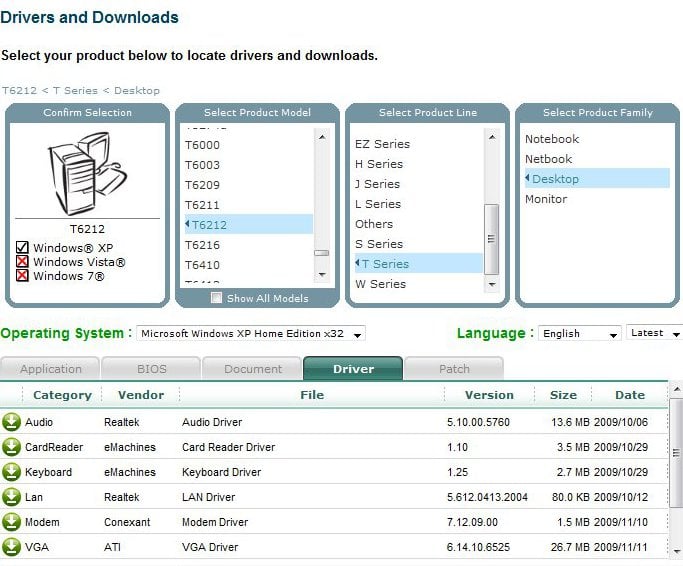
If your computer is a eMachine T6212 you can get the drivers Here .

Select your machine and try the audio drivers.


- Let us know how it goes.

Just a thought...

I have had this same problem with emachines in the past. After doing a full wipe and reload with system disks, still not sound.

After some frustration I was ready to drop a sound card in when WinXP wanted to do some updates. I allowed all updates and when it finished....whala! SOUND! So, it maybe a driver got currupted or something, try requesting a new update or re-install previous updates.

Like I said, just a thought. Good luck

Hello,

Perhaps you are missing the drivers for them or maybe the cables aren't connected.
First check the cables are connected and are in the correct port.
Next you have to try to find the correct drivers if the cables are correctly connected.
Do you know the model of you computer or motherboard number?

You may want to try speccy to get further system information.

- Let us know how it goes.

Perfect! the site that you directed me to has a host of useful driver updates, etc. Problem Solved. thanks for your assistance.

Forrest

Install the drivers -__-

Be a part of the DaniWeb community

We're a friendly, industry-focused community of developers, IT pros, digital marketers, and technology enthusiasts meeting, networking, learning, and sharing knowledge.