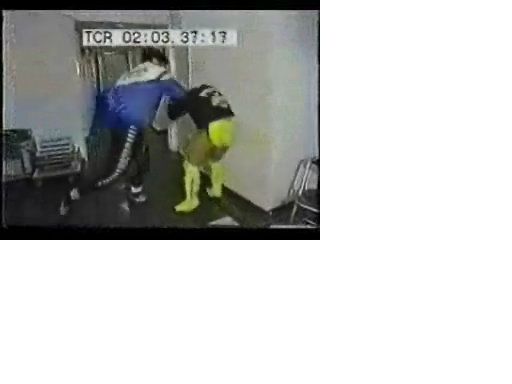
I just noticed while showing a friend some funny videos I have that they are not clear and smooth. I never noticed them like this on my other machine which was a pentium4 786 mb ram, nvidia Gforce 4,. My dvd's are playing pretty smooth, but all my saved videos are not. Any clues or tips? I have attached a snap shot, hope it helps.

My New Machine Specs:

Tower
CASECOOLERMASMaster
MotherBoard
ASUS M2N-SLI Deluxe
Processor
AMD|A64 X2 6000 3.0G AM2 2x1M R 1
AMD Athlon(tm) 64 X2 Dual Core Processor 6000+
Version: x86 Family 15 Model 67 Stepping 3
Speed: 3.37 MHz
AMD Athlon(tm) 64 X2 Dual Core Processor 6000+
Version: x86 Family 15 Model 67 Stepping 3
Speed: 3.0 MHz
Power Supply
PSU OCZ|OCZ700GXSSLI 700W
Memory
x2=1G|OCZ DII800 OCZ2P800R22GK
Brand OCZ Series Platinum Revision 2 Model OCZ2P800R22GK Type 240-Pin DDR2 SDRAM Tech Spec Capacity 2GB (2 x 1GB) Speed DDR2 800 (PC2 6400) Cas Latency 4 Timing 4-4-4-15 Voltage 1.9V - 2.1V Heat Spreader Yes Features Platinum Mirrored XTC Heatspreader
ATI CrossFire Certified
OCZ Enhanced Latency Technology Recommend Use High Performance or Gaming Memory
Video
x2=VGA EVGA 7600GT 256mb
Sound
E-MU USB AUDIO INTFCE
Monitor
HP Pavillion M90

Dani AI

Generated

Several good quick points already appeared in the thread — in particular 's suggestion to try the clip on another machine and / noting the possibility of a low-quality or analogue-origin source. The best next step is a short, methodical diagnosis to prove whether the problem is the video file itself or the playback chain.

Check the file first with a metadata tool (look for native resolution, frame rate, scan type and codec). A small native resolution or an interlaced scan is a common cause of blur or combing when scaled to full-screen; heavy compression will also smear detail. Use a tool such as MediaInfo to read those fields reliably (MediaInfo).

If the file’s metadata looks reasonable, test playback settings next. Play the file at 1:1 pixel size (no scaling) and try a player with built-in codecs/deinterlacing like VLC (VLC). Toggle deinterlacing on/off, try turning hardware video acceleration on or off, and watch CPU/GPU load while playing — high CPU during playback points to decoding limits; visual combing or field artifacts points to interlacing or bad capture settings. Avoid using sharpening or aggressive filters as a permanent fix; they increase artifacts and cannot recover lost image detail.

If the file proves to be low-res or an analogue transfer, the only real remedies are re-capture at a higher quality or obtain a higher-quality source. Quick checklist: (1) inspect with MediaInfo, (2) try 1:1 playback in VLC, (3) enable deinterlace if needed, (4) toggle hardware acceleration and update GPU drivers, (5) re-capture from the original source if the file itself is poor.

Recommended Answers

All 4 Replies

Stupid question, but have you tried this clip on a different pc? As it looks like it was filmed from CCTV which if it's tapes can mean poor quality when transfered to a pc or a high level of compression.

How big are the files that you're trying to play?

What software are you using to open them? Have you tried using different software?

Dazza :cool:

I am using WMP 11, Cyberlink, and Nero Show Time. Most of the files are, Bit rate= 414Kbps, Video sample size 24bit, Size of file 2.37 MB.

are they downloaded from youtube ,looks like something from there,look like they are crappy quality to start with.

That's an analog video, converted to digital. Low quality results from "digital distortion". Try uploading a digital video from raw capture and see the difference.

Be a part of the DaniWeb community

We're a friendly, industry-focused community of developers, IT pros, digital marketers, and technology enthusiasts meeting, networking, learning, and sharing knowledge.