Hey guyz :)

i need help connecting my laptop to HDTV with vga wire.The problem im having is that whn i plug my wire to laptop and restart it shows evrything like windows is loading but when its about to get to the desktop my laptop screen gets black so does the tv?i cant see anything on laptop or the tv?. it was working fine for my whn i 1st pluged it nd then i unplug the wires cuz i had to take my laptop somewhere nd when im trying to plug back in that what is it doing.

and as i knw that vga has 15 pins..but the port is going to my laptop has 14 on both side do u think is tht the problem? if so then why did it worked @ the 1st time?

i have hp dv9000 if that help.Thx guyz :)

Dani AI

Generated

Quick summary tied to the thread: reported the laptop boots and then both the internal screen and the HDTV go black right as Windows reaches the desktop. That pattern most often points to either a graphics-driver/display-mode change when the OS loads, or a hardware/connector problem that only shows when the driver takes over from the basic video used during boot. As noted, display configuration matters, but a few targeted checks will isolate which side is failing.

Diagnostic checklist (in order)

  1. Boot into Safe Mode (Advanced Boot Options / F8). If the desktop appears there, the problem is almost certainly a driver or Windows display setting. If Safe Mode is black too, treat it as a hardware/connector issue.
  2. Boot normally with the HDTV disconnected. If the laptop desktop is normal, change the laptop’s display properties while disconnected: choose a low, standard resolution and 60 Hz refresh, set the output to duplicate/mirror, apply, then plug the TV in.
  3. If Safe Mode shows the desktop but normal boot does not, uninstall the display adapter in Device Manager, reboot, and install the latest WHQL driver recommended for the HP dv9000 series (use HP’s driver page first, then NVIDIA if needed). After reinstall, confirm a TV-friendly resolution before reattaching the HDTV.

Additional checks

  • Inspect both ends of the VGA cable and the laptop port for bent/missing pins or loose shell/grounding. Visual damage can produce intermittent signal loss that only appears after the driver switches modes.
  • Try a different external monitor (not the HDTV) or boot a Linux live USB with the HDTV connected; success there points to a Windows/driver issue.
  • If the internal display is dead even with no external devices attached and Safe Mode, consider a hardware fault (GPU, LVDS/cable, or inverter/backlight) and seek service.

These steps separate software/configuration failures from hardware faults and will suggest whether a driver reinstall, simple resolution change, or repair is required.

Recommended Answers

All 4 Replies

I assume your using Vista? What graphics card are you using?

I am thinking that the laptop isn't setup properly. You should be able to configure monitors with whatever program is used with your graphics card. You can appropriately number your monitors, set up resolutions etc...

I assume your using Vista? What graphics card are you using?

I am thinking that the laptop isn't setup properly. You should be able to configure monitors with whatever program is used with your graphics card. You can appropriately number your monitors, set up resolutions etc...

Hey xlphos :)....first of all thx so much for helping....and 2nd ya im using windows vista with NVIDIA GeForce 7150M/ nForce 630M.....nd wat u mean by tht laptop isnt setup properly? How can i fix tht? i just bought another 15 pin vga wire i thought tht was the problem still same thing. it shows windows booting but right whn it getz to the desktop getz black.

Okay then.

On the desktop right click.
Click on NVIDIA control panel.
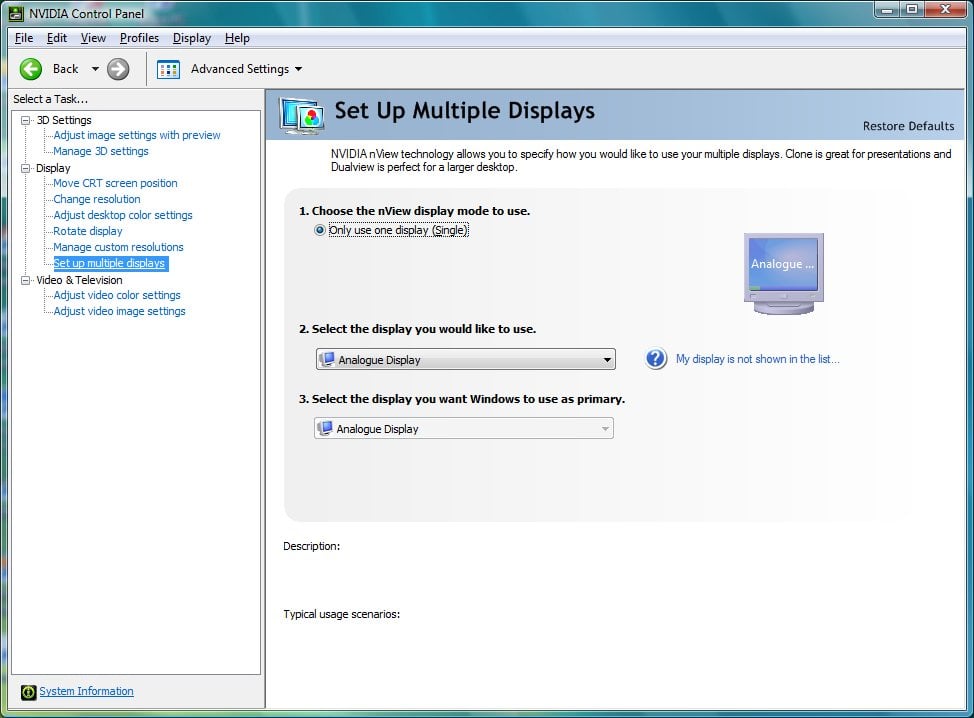
Then select Set up multiple displays. (Have a look a the image I have)


Here you can setup your display's(I only have one, you should have two). I would suggest disconnecting the external monitor until windows starts up. Don't forget their maybe a switch monitor button on the keyboard like 'fn F4'.

Hope this helps.

Okay then.

On the desktop right click.
Click on NVIDIA control panel.
Then select Set up multiple displays. (Have a look a the image I have)
[ATTACH]9897[/ATTACH]

Here you can setup your display's(I only have one, you should have two). I would suggest disconnecting the external monitor until windows starts up. Don't forget their maybe a switch monitor button on the keyboard like 'fn F4'.

Hope this helps.

Yeah i did it b4 i could read this...but i did somthing like tht i think...b/c i dont remember wat i did :)....nd thx so much for helping :)

Be a part of the DaniWeb community

We're a friendly, industry-focused community of developers, IT pros, digital marketers, and technology enthusiasts meeting, networking, learning, and sharing knowledge.