I have 5 computers connected through LAN. My old router (Linksys BEFSR41) doesn't have wi-fi services. So I bought broadband router (Edimax BR-6225n)

I copy all the configurations from my old router to my new router manually. I configure my new router connected to my computer using a cable wire.

I do access my new router using a computer connected through LAN, but there's no internet connection. I tried to Obtain IP and DNS address automatically. Still no luck.

Please help me! I need to have internet connection via LAN then I will proceed configuring Wi-Fi..

Here's is the link of my printscreen and configurations.

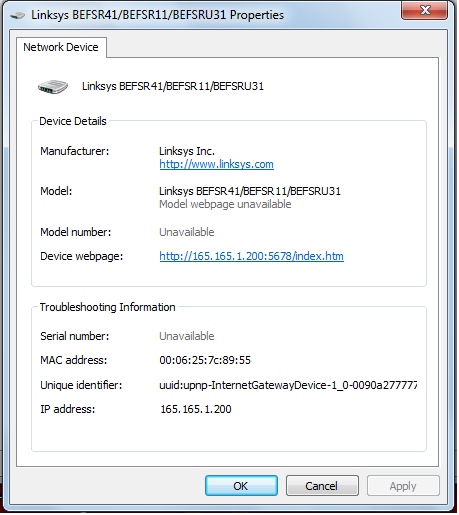
Old router ipconfig /all
(old).txt

New router ipconfig /all
(new) ping.txt

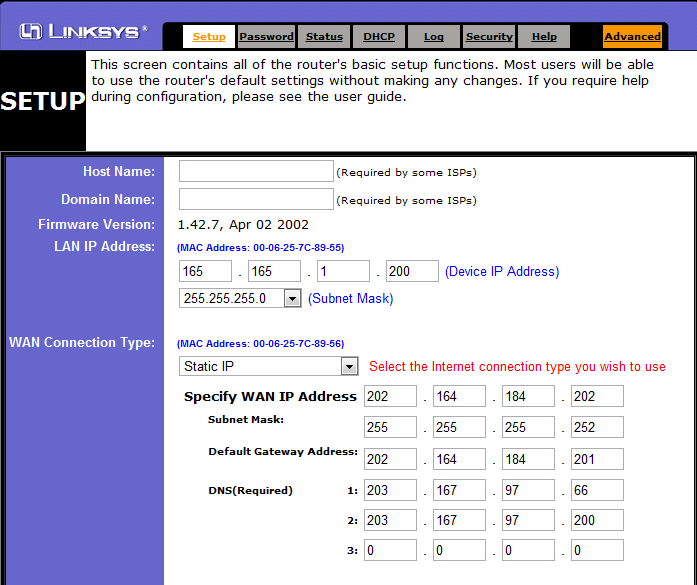
Screenshots of Old router settings
(old) Setup.png
(old).png

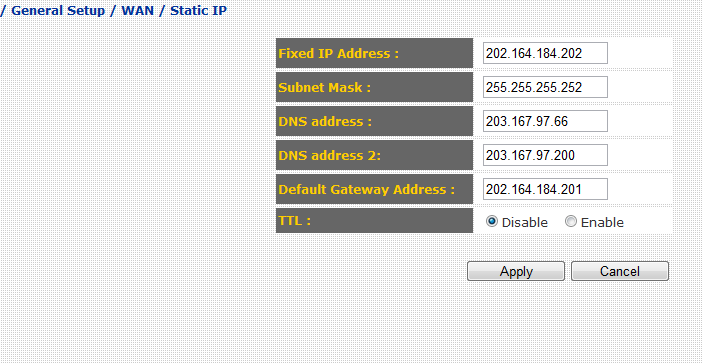
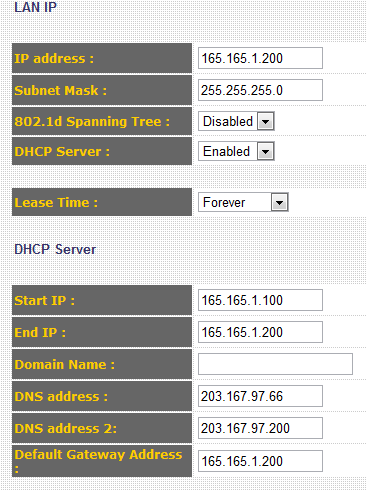
Screenshots of New router settings
(new) wan setup.png
(new).png
(new) Lan.png

Do i have to configure also the Wireless settings to have internet connection even I am connected through wire/cable?

Thanks for the help in advance! I hope there's a genius angel with shining glassed can help me..
Dani AI

Generated

When swapping a broadband gateway or replacing a router the usual culprits for “LAN but no Internet” are: the ISP/modem still holding the old device’s DHCP/MAC binding, the new router’s WAN type set incorrectly (PPPoE vs DHCP vs static), using the wrong port (LAN vs WAN), or a LAN/IP conflict with an existing device. As discovered, a coordinated reboot of the modem and the new router often clears the modem’s cache and forces a fresh DHCP lease; ’s reminder to check IP settings is also on point — but wireless configuration is not required for wired Internet access.

Practical checklist to follow when replacing a router:

  • Physically connect modem -> router WAN port -> PC on a router LAN port.
  • Power off the modem, wait ~30 seconds, power the modem back on and wait until it’s fully online, then power the router.
  • Open the router’s Status/WAN page: verify it shows a public WAN IP, gateway and DNS. If it shows 0.0.0.0 or a private address, check connection type (set to DHCP unless ISP uses PPPoE/static).
  • If the ISP requires a MAC it registered, either clone the old router MAC in the new router settings or reboot the modem with the new router connected.
  • If the modem is a combo (modem+router), consider bridge mode on the modem or set the new router to a different LAN subnet to avoid double NAT.

Quick troubleshooting commands (Windows):

ipconfig /release
ipconfig /renew
ipconfig /all
ping 8.8.8.8

Basic Wi‑Fi security notes: change the router admin password, use WPA2‑AES (or WPA3 if supported) with a strong passphrase, disable WPS, enable a guest network for visitors, keep firmware up to date, and use MAC filtering only as a secondary measure (it can be spoofed). These steps both protect the wireless and make it easier to manage which devices are allowed on the network.

Recommended Answers

All 4 Replies

Sorry for my english.. :( Hope you understand my concern.

Yes you need to configure the wirelss settings on the new router. Check the IP address too.

O yes!! I got it..

I restart my modem and the new router together and booom, it works fine..

Thanks for the reply. I am so happy.. :)

Also I am now working for the security of my wi-fi so that I can limit the users who can access it.. (evil laugh)..

Bye!

GLad to hear that. Good luck working out your router settings:)

Be a part of the DaniWeb community

We're a friendly, industry-focused community of developers, IT pros, digital marketers, and technology enthusiasts meeting, networking, learning, and sharing knowledge.