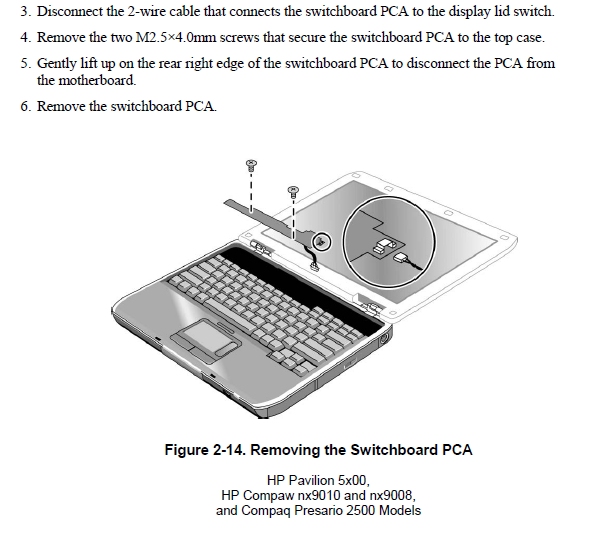
Greetings! 1) What is the switchboard PCA for? (Please?) 2) How do I tell the difference between a keyboard problem and a screen problem?

Compaq 2570US. Original everything (as far as I know).

Troubleshooting: When powered up, I hear the fan for a few. If I press lots of keys, the fan stays on longer. No video at all. Tried toggling Fn+F5 to switch monitors. No luck. Hard drive light flashes every two seconds - in sync with the AC light flashing. Pulled HDD - reads well; no viruses. Keyboard - CAPS LOCK, NUM LOCK, and KEYBOARD LOCK status lights are all on (constantly). Put a bootable USB thumb drive in the slot for kb/mouse and the keyboard status lights do not come on. (I presume that slot is working as advertised!) Moved to another USB port to see if it would acknowledge my bootable thumb drive. No luck. CD/DVD access light toggles, but won't boot CD or DVD. On any boot/reboot attempt, no video. No beep codes either. F8 shows nothing. Neither does pressing any other keys.

All suggestions appreciated!

Thank you very much for your time!

< Steve >

Dani AI

Generated

A focused, practical checklist to separate three likely causes in this kind of no-video/no-beep Compaq: the LCD/backlight, the front “switchboard” (power button/LEDs/top-row buttons), or the mainboard/graphics/EC. was right that the switchboard holds the buttons and status LEDs; ’s broken connector and persistent LED state point toward a control/switchboard issue as well as the display path. The steps below bias toward low-cost, non‑destructive tests that narrow the fault quickly.

  1. Quick display isolation
  • Power on and shine a bright flashlight at the LCD from a short distance (with room lights dim). A faint BIOS/desktop image means the panel and LVDS are delivering video but the backlight/inverter (or LED driver) is dead. No faint image suggests LVDS cable, connector, or GPU/MB problem.
  • Attach an external VGA/monitor cable and power up. Many laptops show POST on the external even if internal switching keys fail.
  1. Switchboard / power-button checks
  • With the unit powered down and battery/adapter removed, unplug the switchboard cable and momentarily short the two power-switch pins on the mainboard to simulate the button. If it then starts, the switchboard or its connector is bad.
  • Use a multimeter (continuity) to identify which wire is chassis ground by probing the connector to a known chassis ground point; black is commonly ground but always confirm.
  1. Basic board-level checks (safety first)
  • Confirm adapter voltage at the DC jack, then check for small standby rails on the board (commonly 3.3V/5V near the power circuitry) with the adapter connected. If those rails are missing, inspect the DC-in area for blown SMD fuse or cracked solder joints. Do not probe high-voltage inverter outputs.
  1. BIOS/EC and memory sanity
  • Remove all RAM and try single-stick variations; some boards will emit POST codes or different LED behavior. Reset EC/BIOS by disconnecting CMOS battery and holding power 30 seconds.

Safety & next steps — avoid using conductive glue on connectors, and do not probe inverter high-voltage circuits. If tests point to motherboard/graphics defects, board-level repair or a replacement board is usually the practical route; a bad switchboard or LCD panel is typically cheaper to replace.

Recommended Answers

All 14 Replies

The switchboard PCA is the board that runs along underneath where the buttons are above the keyboard.

Do you get the same result when booting from mains power or battery?
Does it still have it's original power supply? Have you tested the power supply? (A lot of people incorrectly call it the charger but it powers the laptop as well as charge the battery so it's correct name is power supply).

Thanks, Ric.

What function does the switchboard PCA perform?

No battery. It's been gone for a long while... The original(?) power supply is putting out 18.8vdc...just like the doctor ordered (18.5vdc).

Next?

< Steve >

What function does the switchboard PCA perform?

As I said, it has the buttons above the keyboard on it, that's what it does.

Is the power socket in good condition? Is the plug loose or wobbly in it?

Ah, solenoids. Got it (kinda dense sometimes...sorry).

The plug actually seems to make a really good connection. When the lights are on and I turn the computer around or whatever (before - it's in pieces now), the lights never flickered as in a loose connection.

The connection to the LCD seems snug; though I did reseat it. Should I actually remove the LCD and reinstall it? And all of the keyboard keys have a good feel to them - though it would be hard to tell if any were stuck. However, I am leaning more toward the screen...or MOBO...

If I'm checking output of the power supply, why not tell me where to check the back of the connector on the MOBO? And what I should get...?

Appreciate the help!!

< Steve >

Look for any carbon (black sooty stuff) around the power socket. If you have a test meter it might be worth tracing the voltage. It is likely to go through a surface mount fuse which could well be blown. Surface mount fuses can be quite difficult to identify though as they look a lot like other components.
Give the whole motherboard a thorough visual inspection. You could always post a picture of anything that looks suspect.

Will do. Give me a day... I haven't taken it all the way apart yet.

Thanks!!

No problem. Just so you know I am a computer repair technician and have repaired hundreds of PC's and laptops, including down to component level.

I have some electronics background, but my drug of choice is software. ;-)

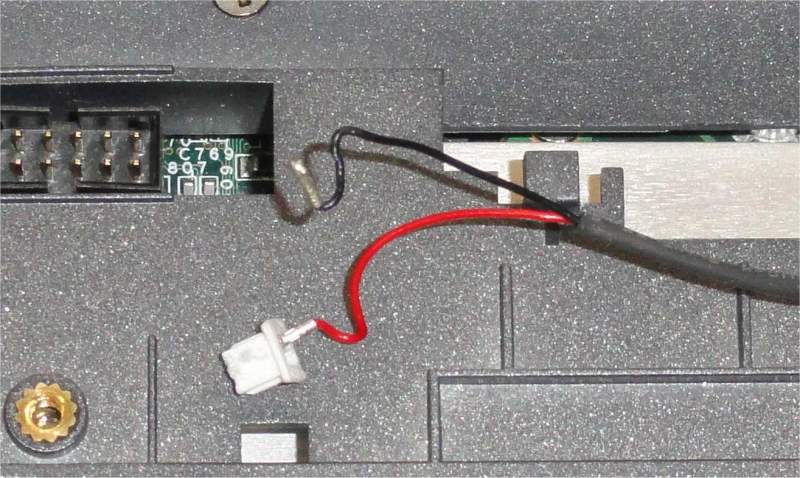
Ok, while unplugging the connector at the end of the switchboard PCA, the little white connector itself broke. (I really didn't didn't think I was pulling that hard...) I had my wife glue the pieces back together. My question: which wire (black or red) goes towards the back of the laptop?

Here are a couple of jpgs. (Not that you need them.)

Thanks!!

< Steve >

I don't know offhand which way round it should go as all makes of laptop are put together differently. I would say that the black is most likely to be a ground so testing resistance between any ground point and the 2 pins should help.

I gots pieces...lots-n-lots of pieces. And more screws than I have seen in a lo-o-ong time.

I'll ohm out the wires when I have to plug the connector back in during assembly.

I took out the MOBO and looked it over - with a bright light, too. No brown or burnt areas/components that I could see...

How do I check out (or test) the LCD screen? Test the voltage, etc. on the connector? It appears to be CN12. That would be a daunting task!

Next step?

Appreciate your time and assistance!

< Steve >

To be honest, I think your next step would be to have a professional look at it. It's made by HP and HP have a big problem with the built in graphics failing. It takes specialist equipment to attempt a repair if that is indeed the fault.

Thanks for all of your help! (Not sure if I'm going to give up that easily...)

< Steve >

Ok, best of luck!

i have got one C700 and I lappie Charger, but problem for me...what volt should i select ..it has go for like 12, 15 , 16 and so on please help

Be a part of the DaniWeb community

We're a friendly, industry-focused community of developers, IT pros, digital marketers, and technology enthusiasts meeting, networking, learning, and sharing knowledge.