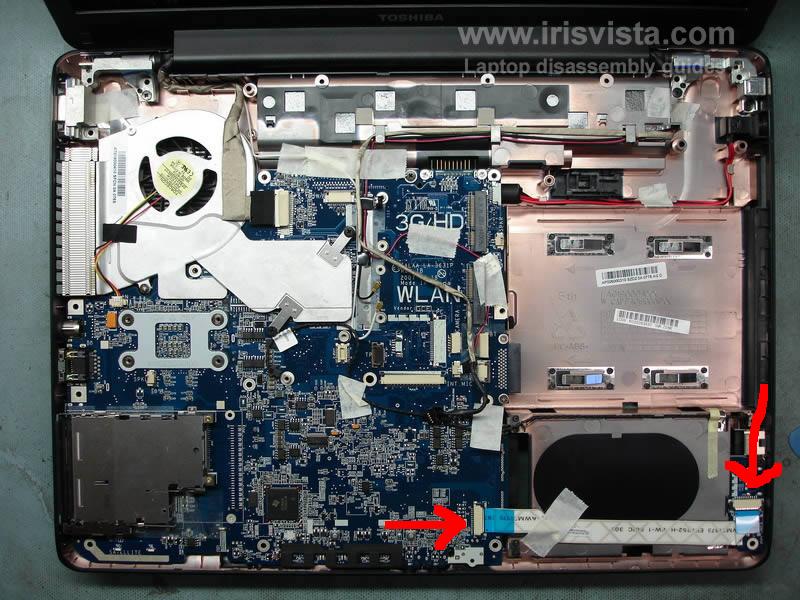
My little niece dropped my sister's laptop which just our luck is out of warranty. Now I am getting the dreaded PXE errors and the Bios said none for HDD. This is a Toshiba A215 model. I opened the HDD slot and removed and re-inserted the drive firmly. I then booted up and nothing! I went on toshiba and upgraded the Bios, nothing! At this point I looked on the net and saw this pic of the cover open. When the laptop was dropped could one of these cables in the picture below could have disconnected? Are these even for the HDD?

thanks all for your help in advance!

rob
Dani AI

Generated

Short diagnosis and next steps based on the thread: PXE errors mean the machine tried network boot because it could not find a local boot device. That can be caused by a truly failed drive, a loose/undetected connection, or a damaged motherboard SATA connector. Do not assume the drive is dead yet — follow a simple, measurable sequence so data is preserved and you don’t buy parts unnecessarily. This expands on points made by and and gives practical tests to run next.

Non‑destructive checks to run now: confirm the drive is listed in the BIOS storage/devices page and temporarily disable network (PXE) boot so the laptop won’t keep falling back to PXE. Power the laptop with the HDD installed and listen: a healthy 2.5" drive usually spins and makes a faint whir; loud clicking or no spin at all points to mechanical failure. Remove the drive and inspect the SATA edge connector and the drive caddy for bent pins, broken plastic, or loose screws — the thin ribbon cables visible under the cover are usually for other modules, not the SATA connection. As suggested, attach the drive to another machine (internal SATA or with a SATA-to-USB adapter/enclosure) and check whether the OS or a disk utility sees the device. If it appears, run a SMART read (CrystalDiskInfo, vendor diagnostics or smartctl) to assess health; if it does not appear anywhere, the drive is likely mechanically failed.

If the drive is readable, immediately image it (Clonezilla, ddrescue, or vendor tools) before running repairs. If the drive clicks or never spins, stop powering it and consider a professional data‑recovery service — continued attempts can worsen damage. For replacement, a modern SSD is a low-cost speed upgrade for an A215-class laptop, and cloning can preserve the existing installation if the old drive is still accessible. Take anti‑static precautions when opening the case and note that internal repairs may affect any remaining warranty.

Recommended Answers

All 4 Replies

The hard disk is dead. They are very sensitve and die easialy. You will need a new hard disk + OS , in which case you would probably be better off with a new laptop

the a215 is a fairly new laptop ,so a new hdd drive will be cheaper than a new laptop.and if they made the recovery dvd's when you first got the laptop t you should not need a new it is the HDD!!! also i don't think that those cables are for the hdd.you could take the drive out and using a usb device attach it to another computer and see if it works

thanks guys for your help. I will try the Hdd via usb to see if i could get it to show.

good luck.

Be a part of the DaniWeb community

We're a friendly, industry-focused community of developers, IT pros, digital marketers, and technology enthusiasts meeting, networking, learning, and sharing knowledge.