greets to the daniweb community, i hope i find you al well

firstly, any ideas here would be really appreciated, this ones really got me....

ok so i havent exactly had to use command prompt for a while, but last time i used it there was no problem... until now. The other wek i was trying to troubleshoot a network connectivity issue, so wanted to use ping, ipconfig, etc etc, but whenever i try to (i am the only administrator) i am confronted ith the error message:


"(ping/ipconfig/netstat etc) is not recognized as an internal or external command, operable program, or batch file"


please help guys as im sure you can understand how frustrating it is not being able to use command prompt!

thanks in advance

Dani AI

Generated

Brief expert note: this thread is a textbook environment-variable problem — restoring the missing system entries in the system-level PATH resolved command resolution for (see ’s suggestion). The recommendations from and about using an elevated prompt are useful, but a few extra checks and safe‑fix steps help avoid accidentally making things worse.

Useful diagnostic commands (run an elevated Command Prompt for HKLM queries):

echo %PATH%
reg query "HKLM\SYSTEM\CurrentControlSet\Control\Session Manager\Environment" /v Path
reg query "HKCU\Environment" /v Path
reg export "HKLM\SYSTEM\CurrentControlSet\Control\Session Manager\Environment" env_backup.reg

Notes on safe repair and cautions: always back up the registry or copy the current PATH text before editing. The GUI editor in System Properties is safest for long PATH strings; the command-line tool setx can be convenient but older builds will truncate values (historical limit ~1024 chars), which can re-break command resolution. If editing by command line is needed, confirm the full value afterwards with echo %PATH% or a registry query.

Other causes and quick checklist: improperly quoted entries or a missing system-level PATH merge (per-user PATH overriding system entries), recent installers or security software that rewrite PATH, or accidental manual deletion. On 64-bit installations, be aware of SysWOW64/System32 redirection quirks when testing 32-bit tools. Summary checklist to leave the system in a known-good state: back up the environment, verify both HKCU and HKLM PATH values, restore/mend the system entries, and then confirm command resolution in a new elevated shell.

Recommended Answers

All 9 Replies

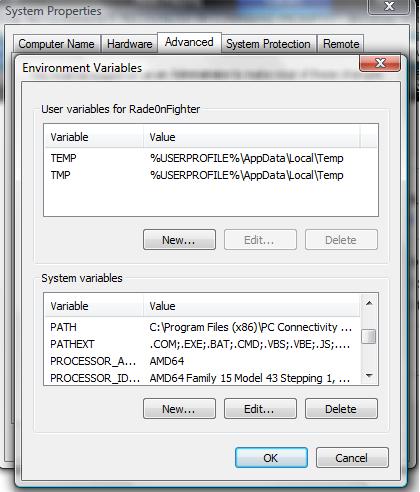
First guess would be that your PATH environment variable is screwed up. If you go to Start, right click Computer, select properties, hit the Advanced System Settings link, and then hit the Environment Variables button, you should be able to find the Path. Make sure it's not empty.

make sure that you run it in administrator mode.

hey guys, first of all thanks for the replies :)

i have attached a screenhsot of my environment variables, the box wouldn't expand so wb if u nee me to scroll down.

i remember editing these when i was learning java, but "ping" etc. were still working afterwards (i think)


please help as this is killing me day by day lol.


thanks again

As forumdude123 suggested, did you try running cmd as admin?

Right click and select "Run as administrator".

vista requires an additional installation of all the standard tools. the usual add-remove windows components have all those disabled in the default installation, as well as the telnet and tftp client

I'm again suspicious of your PATH. Here's mine:

%SystemRoot%\system32;%SystemRoot%;%SystemRoot%\System32\Wbem;C:\Program Files\Intel\Wireless\Bin\;C:\Program Files (x86)\Windows Imaging\;C:\PROGRA~1\CA\SHARED~1\SCANEN~1;C:\Program Files\CA\eTrust Antivirus;c:\Program Files (x86)\Microsoft SQL Server\90\Tools\binn\

Notice the system directories at the beginning. These should be first, as they should be the first place the system looks for executables. Since they didn't show up in yours, I'm almost curious if something wiped your PATH out. You can try putting those back in (just edit the value from that dialog) and see if that fixes it. ping, for example, is in the %systemroot%\system32 directory.

commented: this is exactly what i wanted, thanks! +2

Are you able to bring up a command prompt application by double clicking it ie c:\windows\system32\nslookup.exe?

AJZ

I'm again suspicious of your PATH. Here's mine:

%SystemRoot%\system32;%SystemRoot%;%SystemRoot%\System32\Wbem;C:\Program Files\Intel\Wireless\Bin\;C:\Program Files (x86)\Windows Imaging\;C:\PROGRA~1\CA\SHARED~1\SCANEN~1;C:\Program Files\CA\eTrust Antivirus;c:\Program Files (x86)\Microsoft SQL Server\90\Tools\binn\

Notice the system directories at the beginning. These should be first, as they should be the first place the system looks for executables. Since they didn't show up in yours, I'm almost curious if something wiped your PATH out. You can try putting those back in (just edit the value from that dialog) and see if that fixes it. ping, for example, is in the %systemroot%\system32 directory.

hello again, i would just like to say a BIG thank you to all of you who took the time out of your day to help me, it is very much appreciated.

The above quote was the solution to my problem, and i found the explaination really useful too, so a massive thanks to Infraction in particular, i shall be sure to boost your rep :P

Again thanks guys, I will try to help as many other Daniweb members as i can, to return the favour to this great community.

i wish you all the best in your endeavours and hope i dont have to start a new thread for a long time!

@infraction THANK YOU SO MUCH i took your path link and clicked the new box in the system section, then selected it and it worked now my only problem is i cant connect to any minecraft servers not even my own D:<

Be a part of the DaniWeb community

We're a friendly, industry-focused community of developers, IT pros, digital marketers, and technology enthusiasts meeting, networking, learning, and sharing knowledge.