So, the title pretty much explains the problem... everytime I move or resize my windows (any program), a black or a white border appear and I can't see where my window is going until I release it... I found a way to do it by going to the taskbar, ricght clicking on "Computer", "properties", at the top left "Advanced system settings", under "performance" I click "settings" then I select "Adjust for best appearance". Then everything is okay.... until I restart my computer... Everything gets back like before... the white or black borders re-appear... and it sooooo f**ing annoying! Please help! I want to make the setting permanent!

Dani AI

Generated

already confirmed the visual‑effects tweak fixes the problem for the current session but reverts after a restart; correctly pointed to the UI toggle, but this symptom usually means something else is forcing Windows to fall back to the basic/outline behaviour at logon (theme/graphics driver, a logon policy or a profile/startup process) rather than a simple forgetful checkbox.

Quick checks and a persistent fix:

  • Verify the actual registry value that controls the behavior: HKCU\Control Panel\Desktop\DragFullWindows. In a command prompt run:
    reg query "HKCU\Control Panel\Desktop" /v DragFullWindows

    If the value is not 1, set it (run as the affected user):

    reg add "HKCU\Control Panel\Desktop" /v DragFullWindows /t REG_SZ /d 1 /f
  • If that value flips back after reboot, something at logon is overriding it.

What commonly overrides it (and what to test):

  • Themes/Composition: ensure the Themes service is enabled and Windows isn’t starting in a Basic theme because the graphics driver failed at boot. Update/reinstall the display driver and check Device Manager for fallback adapters.
  • Third‑party tools or clean‑up utilities: try a clean boot (msconfig) to see if a startup item resets visual settings.
  • Roaming or domain profiles / Group Policy: corporate environments or logon scripts can enforce visual settings; check with the admin or review Group Policy (gpedit.msc) if present.
  • Corrupt user profile: create a new local user and see whether the setting persists there — if it does, the original profile may be damaged.

If needed, enforce the setting at logon by importing a small .reg file or a logon script (back up the registry first). For system corruption, run sfc /scannow and check Event Viewer for errors at startup. These steps identify whether the problem is a misbehaving startup item, a driver/theme issue, a policy, or a bad profile — and lead to the correct permanent fix.

Recommended Answers

All 6 Replies

Hi,

In the window you're talking about, try to use the apply button to save the setting permanent.

After doing that, the apply button stays the same, it doesn't give me the option to save it permanently...

When you click the apply button, windows normally save the setting permanent.

Well... It doesn't.

Hi again,

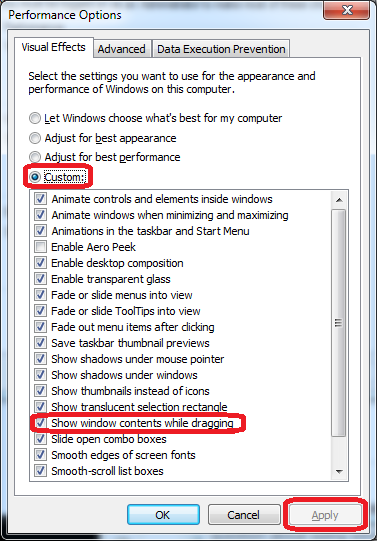
In the same window do this (see the attached image) :
- Select Custom
- Select options that you want and dont forget Show window contents when dragging
- Validate new settings with the Apply button
- Close the window by the OK button.

... sigh... As soon as I restart, the borders get back... :'(

Be a part of the DaniWeb community

We're a friendly, industry-focused community of developers, IT pros, digital marketers, and technology enthusiasts meeting, networking, learning, and sharing knowledge.