Menu DaniWeb
Log In Sign Up
  • Read
  • Contribute
  • Meet
  1. Forums
  2. Hardware and Software
  3. Networking
  4. Product Reviews
  5. Product Review

See in The Dark With D-link Surveillance

14 Years Ago Updated 14 Years Ago srv104 1 Tallied Votes 297 Views Share
Manufacturer
D-Link
URL Screenshot of Dlink.com http://Dlink.com
Price
$279
Pros
Great video quality and cost effectivenes
Cons
Low speaker output and only half duplex
Summary
For $279, I think this is a great camera. The software is easy to use and setting up the camera on the network can be done in less than 10 minutes. Video quality is exceptional for a camera in this price range as is the microphone. However, if you require good two-­‐way communication, I would look elsewhere. Yelling at the dog for chewing on a couch cushion remotely is simply not an option here. I give this camera an 8 out of 10.
Rating

IMG_13002

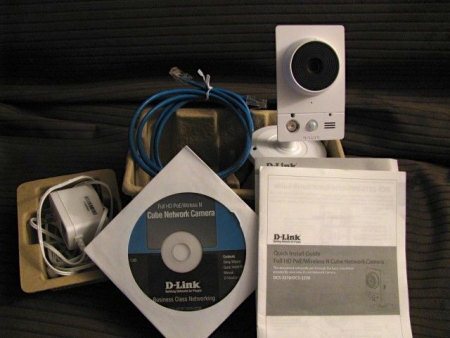
The D-link DCS-2230 offers a low cost solution to indoor surveillance. Boasting 2-way communication, wireless N connectivity, and 1080p resolution even in complete darkness. Opening the box provided the basics: The camera, power, documentation, mounting hardware, CAT5 cable, and installation software. After plugging the camera into my router and powering it on, I proceeded to install the software. Inserting the CD greeted me with the familiar D-Link installation screen. There are two programs that need to be installed: The Setup Wizard SE and the D-ViewCam surveillance software.
SE_Software

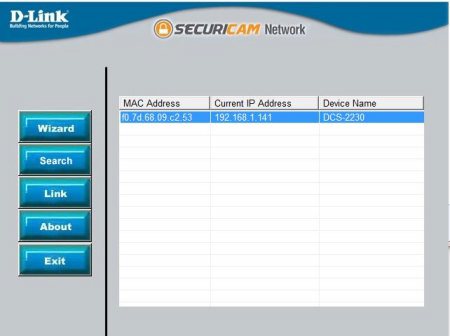
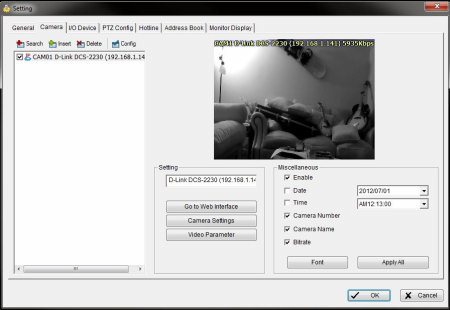
The Setup Wizard found the camera in seconds and I was able to run the wizard to configure the camera. This included IP settings, WIFI, camera resolution, and audio. Once this was completed, I was free to use the wireless and move on to the surveillance software. The D-ViewCam software was also very user intuitive and adding the camera to the software was as simple as clicking “search” once inside the settings. All settings for the camera can be maintained within the software or via web browser (I.E. only). After adding the camera, it was time to check the quality.
CamSettings1

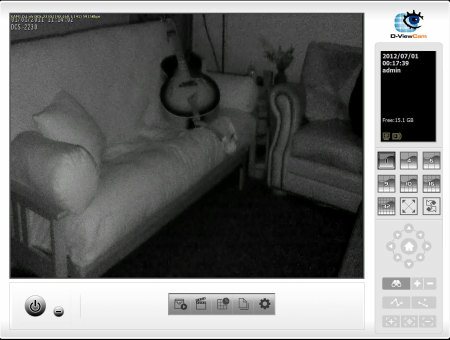
The overall video quality of the camera was very impressive. Normal indoor lighting and even low light settings were crystal clear at 1920 x 720. But there was only one problem; WIFI does not like streaming HD video. The average throughput ranged from 5.8MB - 6MB / second at full quality. The latency was unbearable for real-time viewing so I decided to switch back to the CAT5 cable. Once back in Ethernet mode, my latency issues were resolved. Next up was to see how the camera functioned in complete darkness. Once again, I was very impressed. Movement was accurate and the video stream was much more vivid than expected.
complete_darkness

The built in microphone on the DCS-2230 was able to capture everything in the room. The Audio was clear and precise. Adjusting the gain through the web interface allowed me to practically hear the neighbors. The speaker on the other hand was virtually useless. At first, I was unable to activate the speaker. Enabling the talk feature from D-ViewCam did nothing. I had to disable the speaker, restart the camera, and re-enable the speaker through the web interface (doing this from the surveillance software did nothing).

With output finally activated, it was time to reprimand a virtual intruder. Using a USB headset to reduce feedback, I activated the talk feature and began speaking. Output ranged from a low whisper to inaudible crackling when speaking loudly. To rule out the headset, I tried other input devices, which yielded the same results.

Specifications:

  • Full High Definition Megapixel sensor (1080p)
  • Wireless N technology for the fastest connection speeds
  • H.264, MJPEG and MPEG-4 compression to store high quality images in less disk space
  • Simultaneous multi-stream support
  • Software-based motion detection and email alerts
  • ePTZ (Electronic Pan/Tilt/Zoom)
  • Supports multiple access list
  • 3GPP support for mobile monitoring
  • MicroSD card slot for local image storage
  • Built-in Samba client for NAS
  • IR illuminator and IR-cut filter for night vision
  • Built-in 2-way audio support (microphone + speaker)
  • Built-in PIR (Passive Infrared) sensor for infrared motion detection

Digital Input/Outputs for integration with sensors and alarms

Privacy Mask feature

DW_rating_8_150px5

storage video wifi
DW_rating_8_150px.png 17.51 KB
About the Author
Member Avatar for srv104
srv104 0 Newbie Poster

Dani AI

Generated 9 Months Ago

Good hands-on from and a useful real-world thumbs-up from . The clearest takeaways are: the camera does very well in low light but pushing full HD over a typical Wi‑Fi link can cause high latency, and the built‑in speaker behaviour (requires web UI reset, low volume, crackling) deserves deeper troubleshooting. Two things not covered in the original post that help other readers: how to tune the stream for wireless viewing, and a short checklist to isolate the audio problem.

  • Reduce the live‑view load before blaming the network: lower frame rate (10–15 fps) and resolution for the remote/live stream, keep higher settings only for local/recorded streams. Prefer a hardware‑friendly codec (H.264) and set a practical max bitrate so the stream stays within wireless limits.
  • Improve Wi‑Fi reliability: move the camera closer to the AP, avoid crowded channels, enable WMM/QoS for video, or use a dedicated AP/mesh node. If you need true 1080p realtime viewing, use Ethernet.
  1. Audio isolation steps: test speaker output directly from the camera's web interface in a browser (this separates camera firmware from D‑ViewCam). If browser audio is fine, the client software is likely at fault — try another browser or reinstall D‑ViewCam. If the browser also shows crackle/low volume, power‑cycle the camera, check and reset speaker/gain settings, then update firmware and test again.
  2. If crackling persists only on wireless, switch to wired to rule out packet loss. If it persists on wired, capture the firmware version and logs and contact D‑Link support.

Quick security and reliability notes: change default passwords, use WPA2/WPA3 on Wi‑Fi, keep firmware current, and use local circular recording plus NAS backup for missed events. Also be mindful of local laws and privacy when recording audio or using nanny‑cam setups.

Member Avatar for littlemisschic
littlemisschic 0 Newbie Poster
14 Years Ago

We bought this system from SNIP about 2 years ago. It's amazing we use it for our home security. We have it linked to both our laptops so we can keep an eye on things while we work away, And it's very discreet so it makes a great nanny cam aswell. Great buy, I would recommend this to anyone looking to upgrade their home security system.

Edited 14 Years Ago by happygeek because: advert link deleted
Reply to this topic
Be a part of the DaniWeb community

We're a friendly, industry-focused community of developers, IT pros, digital marketers, and technology enthusiasts meeting, networking, learning, and sharing knowledge.

Sign Up — It's Free!
Recommended Topics
  • Member Avatar Newly built computer with fx zambezi 8 core processor = no video 11
  • Member Avatar D-LINK router acting starnge 1
  • Member Avatar Ping requests seem to be redirecting to my own IP 3
  • Member Avatar Using the an Ultra-Portable Laptop as an HD Media Center PC: Step-by-Step Guide 5
  • Member Avatar Home Network setup 5
  • Member Avatar The HP EliteBook 8460p is an all around great buy 6
  • Member Avatar Will I be charged ISD rates for this 4
  • Member Avatar BSoD while starting game 16
  • Member Avatar Internet Works for 2 minutes, then stops. 8
  • Member Avatar wifi and LAN conflict 7
  • Member Avatar signature based IDS 2
  • Member Avatar WiFi file serving 12
  • Member Avatar dsl connection split 2
  • Member Avatar wifi problem 3
  • Member Avatar re-direct network traffic through a point to point connection 6
  • Member Avatar Wifi setup>>I need help(Recommendations) 5
  • Member Avatar Can computers on other LAN networks, access a printer that is connected... 3
  • Member Avatar Video Capture In Visual Basic 2
  • Member Avatar safe to hook up vpn router to wifi location? 11
  • Member Avatar Internet via Wifi doesnt Work 6
Not what you need?

Reach out to all the awesome people in our networking community by starting your own topic. We equally welcome both specific questions as well as open-ended discussions.

Start New Topic
Topics Feed
Reply to this Topic
Edit Preview

Share Post

Insert Code Block

  • Forums
  • Forum Index
  • Hardware & Software
  • Programming
  • Digital Media
  • Community Center
  • Recent
  • Recommended Topics
  • Newest Topics
  • Latest Topics
  • Latest Posts
  • Latest Comments
  • Top Tags
  • Tools
  • Writing
    • Start New Topic
    • Markdown Syntax
    • Newsletter Archive
  • Social
    • Top Members
    • Meet People
  • APIs
    • Connect API
    • Forum API Docs
    • Topics Feed
  • Resources
  • Community Rules
  • DaniWeb Premium
  • FAQ
  • About Us
  • Advertise
  • Contact Us
  • Legal
  • Terms of Service
  • Privacy Policy
© 2026 DaniWeb® LLC
© 2026 DaniWeb® LLC
  • FAQ
  • About Us
  • Advertise
  • Contact Us
  • Terms of Service
  • Privacy Policy