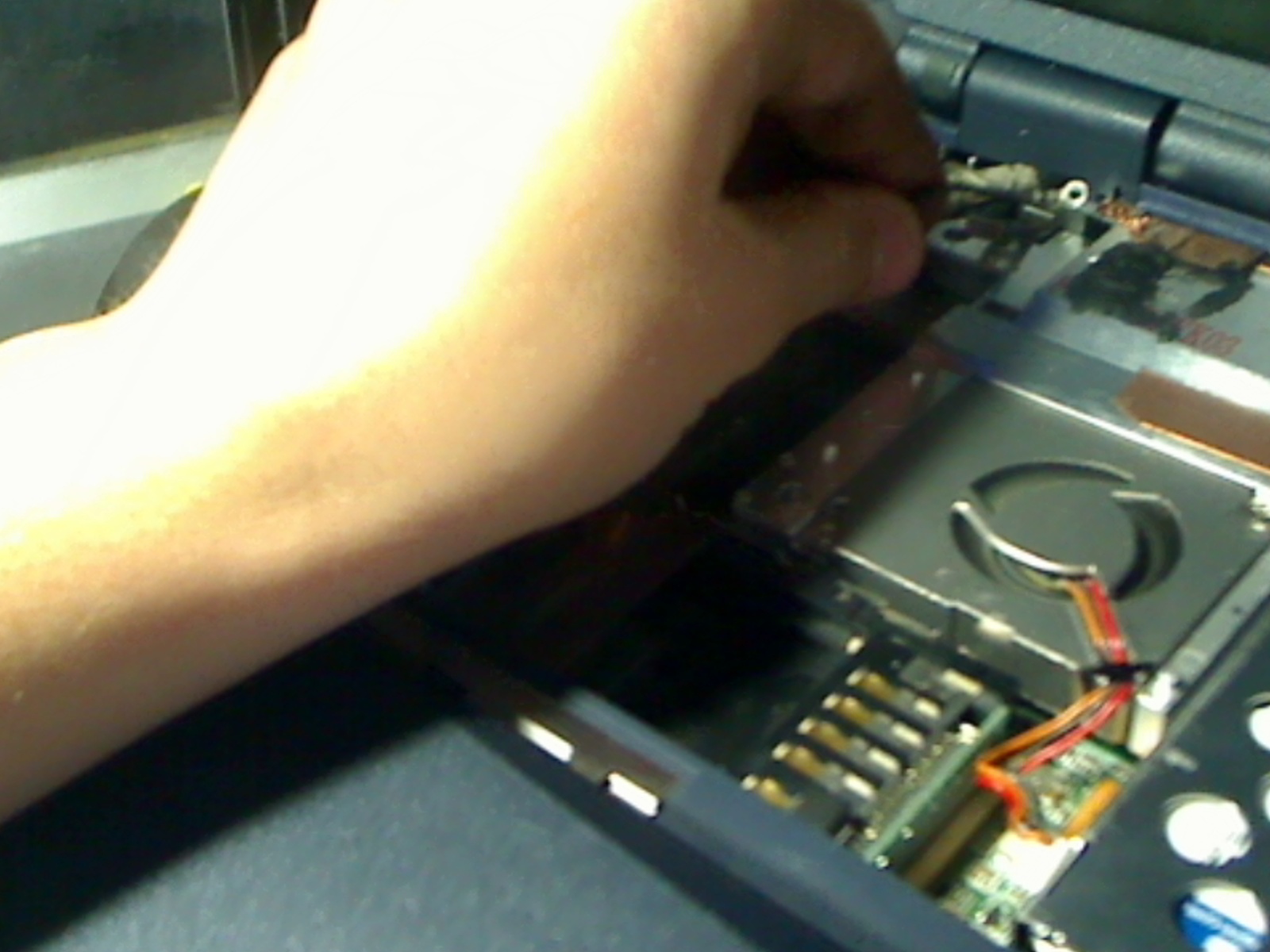
I took apart my vaio laptop (I have had experience with Vaio Laptops) and put it back together twice trying to figure out why the screen is blank and also the indicator (LED indicator) that looks like a cup does not lite up. Everything else works. The screen for the laptop is fine, its just that the laptop is 3 to 5 years old. The only reason I took it apart is because the ram had 512MB worth of ram and it only indicated that it has 256MB. I noticed it awhile ago, but it pissed me off so I took it apart and put it back together, I found out the reason the ram wasn't working. The ram needed to have something being forced on it with the lid closed, so it will reconize it. Any suggestions.

Dani AI

Generated

Short summary and a focused troubleshooting sequence to isolate the fault (doesn't repeat every detail already in the replies):

Common causes for a live-but-blank internal screen are: (A) the panel is showing an image but the backlight/inverter/driver is dead, (B) the panel/video ribbon or its connectors are damaged or improperly seated, or (C) the GPU/motherboard is not sending a signal. The steps below move from the least-invasive checks to the more-invasive so you can narrow the problem without guessing.

  1. Quick non‑invasive checks
  • Try an external monitor (VGA/HDMI). If the external shows BIOS/Windows, the motherboard/GPU is OK and the fault is in the internal display path.
  • While the laptop is powered on, shine a bright flashlight at the LCD at a low angle. If you can faintly see the image, the backlight (inverter or LED driver) has failed.
  • Toggle the display output with the Fn+display key and try brightness keys.
  1. Cable/connector and power-cycling
  • Power down, remove battery/AC, hold power 30 seconds, reseat the display flat‑flex ribbon at both ends (panel and board). Inspect the cable for torn traces, tape repairs, or bent pins. Take close macro photos of both connector ends before and after reseating.
  1. If external is blank too
  • Test with one RAM stick and listen for POST/beep codes; a completely blank external + internal often points at motherboard/graphics or memory. Try swapping RAM or booting to BIOS.
  1. If internal is blank but external works
  • Replace/test the inverter or the LCD panel (cheaper to try the inverter on CCFL systems; for LED panels the driver/panel is likely). Avoid probing the high‑voltage inverter outputs if you are not experienced.

Safety/caveats: use ESD precautions, do not short pins, do not power the display inverter connections while exposed. As and others suggested, the display harness is a frequent culprit; if uncertainty remains, post clear close-ups of the board connector, the ribbon end, and the round cable you mentioned so identification can be confirmed. If you prefer not to DIY, a repair shop can swap the panel/inverter quickly for a definitive test.

Recommended Answers

All 16 Replies

I am not familiar with that specific laptop, but I would assume that there would be a ribbon cable that comes from the monitor to connect to the laptop's motherboard. Have you checked that cable to make sure it is plugged in properly?

as fo the ram ,if the clips that hold in are boken you could fold a pice of Cerial Box type paper to fill the gap and put the lid back on ,not sure why you took it apart to look attthe ram ,most laptops have a cover on the bottom to view ,remove the ram ,what is the exact model of you Vaio

vaio laptop

I am not familiar with that specific laptop, but I would assume that there would be a ribbon cable that comes from the monitor to connect to the laptop's motherboard. Have you checked that cable to make sure it is plugged in properly?
{snip}

yes, PCG-FXA49 Vaio laptop. And yes I checked the ribbion cable yes fine. But theres a black cable with a round thing that can have a little screw to hold it and that turns the cup/bottle image on to the color (LED) orange. But, I don't know whewre to connect it?

Also, the model I had, the ram is under the cpu fan, so everything was coverd so I took it apart. I found the problem it was that something needed to be applied to the ram to keep it held down.

the model I have.

So you resovled your issue, it was that the RAM modules were not properly seated, correct?

yes, then I put the laptop back together and the screen was black but everything was on and the screen had the LED's running.

but no image on the screen.

Everything worked (Hard Drive, CD/Drive, but the screen was black.

Will a pic help?

Picture_39

This post has no text-based content.

chekc the ram and inbuilt speaker.
or check display cable,.,,,

or check your cpu also.
display matter more by cpu.

Happened to me on my HP Laptop once before.. I finally had to throw that beautiful piece... And i did exactly the same thing.. But in my case, while inserting the RAM i managed to bend a part in the seat... Tried fixing it with a screw driver, ended up breaking it :P Then i finally took it to the HP guys, they were charging me almost half the price I paid for the lappy, so decided to chuck it and buy myself a new one...

My Advice : Get it to a SONY Outlet, let them fix it up for u.. I'm pretty sure it'll still turn out to be cheaper coz the probability that someone wud screw something up in such intricate machinery is very large...

Hay Bro,
Check your RAM if here is beeping with, then it is RAM or Processor prob plz check..

Be a part of the DaniWeb community

We're a friendly, industry-focused community of developers, IT pros, digital marketers, and technology enthusiasts meeting, networking, learning, and sharing knowledge.